> ## Documentation Index
> Fetch the complete documentation index at: https://help.sonto.app/llms.txt
> Use this file to discover all available pages before exploring further.
# Repeating Tasks
> Set a task up once and let it come back on your schedule
Some tasks come back again and again. This walkthrough shows how to make a task repeat — and, if you
like, add each occurrence to your calendar automatically. Watch below, or read the written steps that
follow.
## Open the repetition settings
Right-click a task and choose **Edit Repetition**, or open the task, go to its menu, and pick **Edit
Repetition**. Same result either way.
## Choose how it repeats
There are two styles:
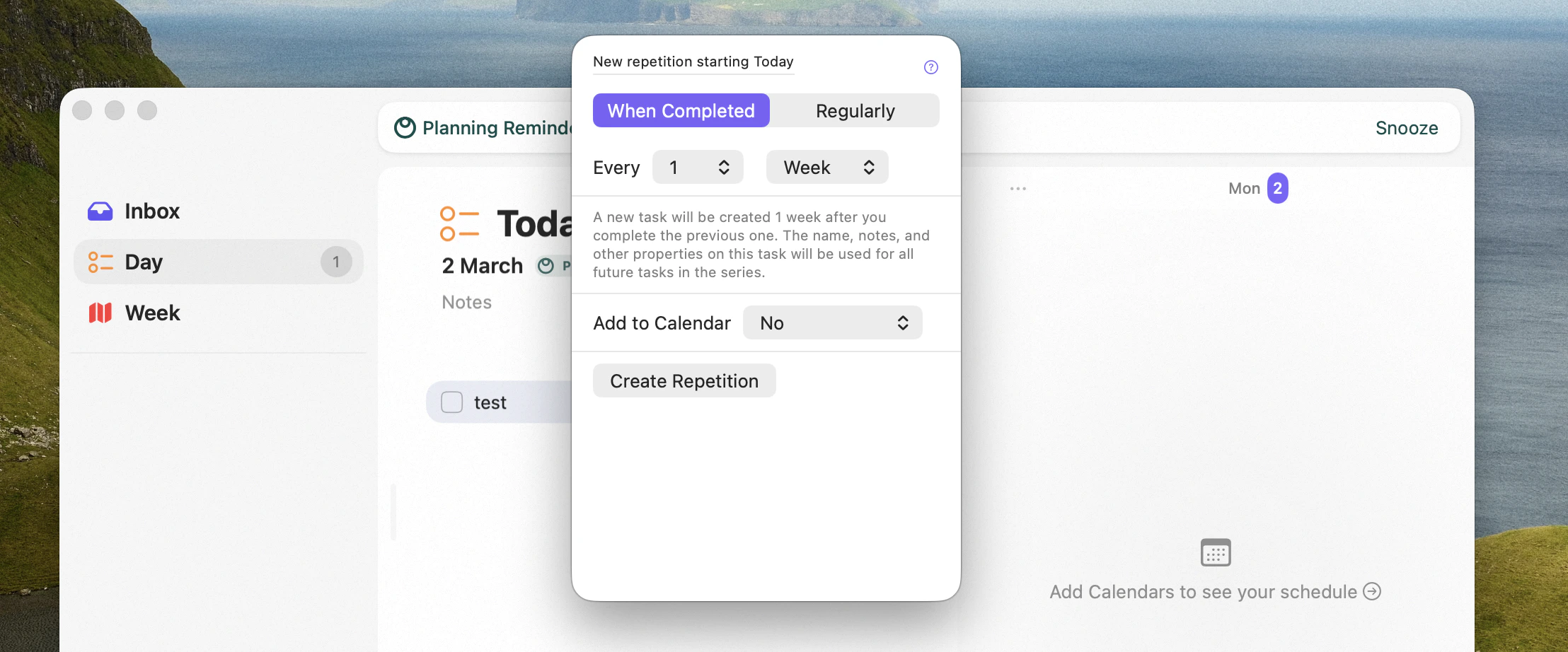
* **When completed** — Sonto keeps just one instance of the task at a time. When you check it off, a new
one appears after the offset you set. Think of it as a rolling window: "water the plants 5 days after
I last did."
* **On a regular schedule** — Sonto creates several instances into the future on a fixed cadence:
daily, weekly, monthly, every two weeks, weekly on certain days, and more. Need something specific?
**Custom** lets you build a daily, weekly, monthly, or yearly rule.
A task scheduled **on a week** can't repeat more often than weekly. To repeat daily, schedule the task
on a **day** first, then set up the repetition.
## Add each occurrence to your calendar
When you set up a repetition, you can also create a calendar event for each occurrence:
* **At an exact time** — the event always lands at that time, even if something else is there.
* **Find an opening** — Sonto places it at the best time that fits, respecting your working hours and
existing events. See [Auto-schedule](/reference/auto-schedule).
By default Sonto keeps **5** occurrences scheduled ahead (you can raise this, e.g. to 10). As you
complete them, new ones are created to keep that number topped up.
## Review your repeating tasks
Future occurrences can be far off, so there's one place to manage them all: open the **Go to** menu and
choose **Repeating tasks**. From there you can review, edit, or delete any repetition, and jump straight
to its next instances.
## On iPhone too
Everything here works on iPhone as well — open a task, choose **Edit Repetition**, and you'll find the
same options.
## Where to next
The full detail on repetition.
How Sonto finds an opening for an event.
 ## Choose how it repeats
There are two styles:
* **When completed** — Sonto keeps just one instance of the task at a time. When you check it off, a new
one appears after the offset you set. Think of it as a rolling window: "water the plants 5 days after
I last did."
* **On a regular schedule** — Sonto creates several instances into the future on a fixed cadence:
daily, weekly, monthly, every two weeks, weekly on certain days, and more. Need something specific?
**Custom** lets you build a daily, weekly, monthly, or yearly rule.
## Choose how it repeats
There are two styles:
* **When completed** — Sonto keeps just one instance of the task at a time. When you check it off, a new
one appears after the offset you set. Think of it as a rolling window: "water the plants 5 days after
I last did."
* **On a regular schedule** — Sonto creates several instances into the future on a fixed cadence:
daily, weekly, monthly, every two weeks, weekly on certain days, and more. Need something specific?
**Custom** lets you build a daily, weekly, monthly, or yearly rule.