> ## Documentation Index
> Fetch the complete documentation index at: https://help.sonto.app/llms.txt
> Use this file to discover all available pages before exploring further.
# Calendar
> How Sonto works with the calendars on your Mac and iPhone
Get introduced to calendars and time blocking in Sonto.
## Connecting your calendars
Sonto uses the calendar accounts already set up on your Mac and iPhone. Because it reads from your
device's native calendar, practically every calendar works — **iCloud, Google, Microsoft Outlook
(Exchange), Yahoo, Proton, AOL, and any CalDAV calendar**.
The first time, Sonto asks permission to use your calendars — choose **Allow Full Access**. Then click
the **+** to add any calendar on your device.
Calendars come from the accounts in your device's system settings — on Mac, **System Settings →
Internet Accounts**; on iPhone, **Settings → Apps → Calendar → Accounts**. Any account there with
calendars enabled shows up in Sonto automatically; there's no separate sign-in inside Sonto.
### Where events go
One calendar is your **default** — new events and scheduled tasks go there. Change it in your calendar
settings. An [area](/reference/projects-areas) can also have its own default calendar, so tasks you
schedule from that area land on a specific calendar, shown in its own colour.
### Private events on Google
Events Sonto adds to your calendar are marked **private**, so anyone with access sees only "Busy". For
**Google** calendars, connect your Google account in Sonto settings (**Connect Google account**) to
enable this — the standard Apple connection can't mark Google events private on its own.
## Calendar on the Day and Week screens
On the day and week screens, Sonto shows your events right alongside your tasks, so your meetings and
your planned work live in one view.
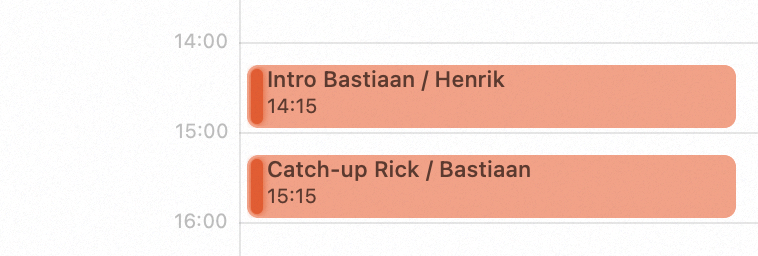 You can create and edit events, as well as accept or decline invitations, without leaving Sonto.
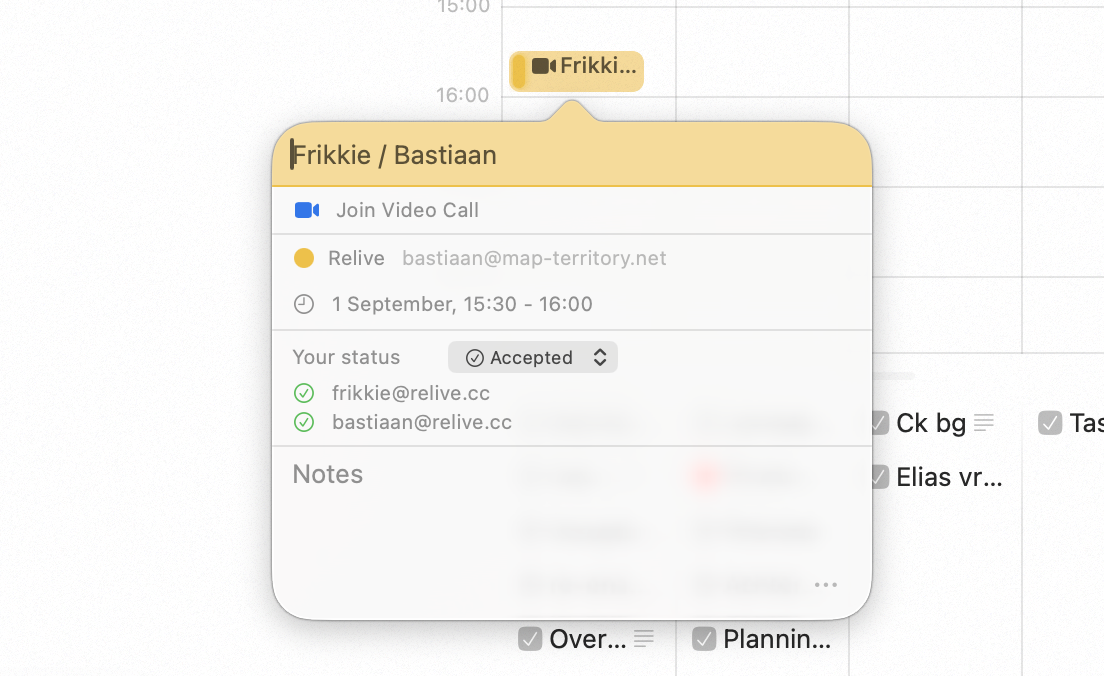
You can also join video calls, either by opening the event and clicking the **Join Video Call** button,
or, on Mac, by hovering over the event and pressing Cmd + J.
You can create and edit events, as well as accept or decline invitations, without leaving Sonto.
You can also join video calls, either by opening the event and clicking the **Join Video Call** button,
or, on Mac, by hovering over the event and pressing Cmd + J.
 ## Tasks on your calendar
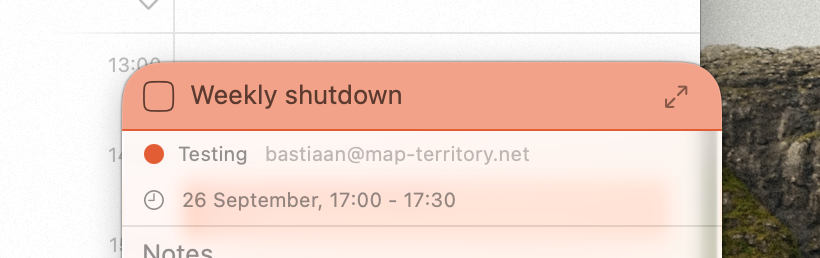
You can drag tasks onto your calendar. This creates an event which is linked to your task — a *time
block*. The event syncs to your calendar, so others with access to your calendar can also see it. The
event is marked **private**, so they only see "Busy", rather than the full name and notes for your task.
## Tasks on your calendar
You can drag tasks onto your calendar. This creates an event which is linked to your task — a *time
block*. The event syncs to your calendar, so others with access to your calendar can also see it. The
event is marked **private**, so they only see "Busy", rather than the full name and notes for your task.
 You can also create a time block by typing. Name a task `Review deck tomorrow 3pm 1h` and Sonto blocks
the time for you — see [Natural language input](/reference/natural-language-input).
Sonto can also place a task for you automatically, finding an opening that respects your working hours
and existing commitments — see [Auto-schedule](/reference/auto-schedule).
## Availability
Calendars work on both **Mac** and **iPhone**. Joining a video call with Cmd + J
is a Mac shortcut; on iPhone, open the event and tap **Join Video Call**.
## Related
A visual walkthrough of connecting calendars and blocking time.
You can also create a time block by typing. Name a task `Review deck tomorrow 3pm 1h` and Sonto blocks
the time for you — see [Natural language input](/reference/natural-language-input).
Sonto can also place a task for you automatically, finding an opening that respects your working hours
and existing commitments — see [Auto-schedule](/reference/auto-schedule).
## Availability
Calendars work on both **Mac** and **iPhone**. Joining a video call with Cmd + J
is a Mac shortcut; on iPhone, open the event and tap **Join Video Call**.
## Related
A visual walkthrough of connecting calendars and blocking time.