> ## Documentation Index
> Fetch the complete documentation index at: https://help.sonto.app/llms.txt
> Use this file to discover all available pages before exploring further.
# Export as Markdown
> Turn any view into Markdown text to share or reuse
Sonto can turn any view — a day, a week, a project, or a plan — into **Markdown** text. Markdown is
plain text that keeps its structure (headings, lists, checkboxes), so it pastes cleanly into almost
anything.
## Export a view
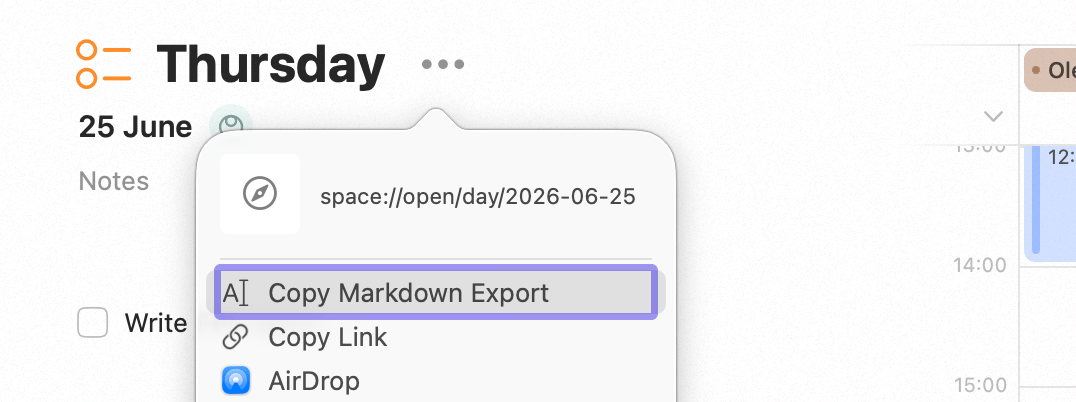
Open the view you want, then choose **Export as Markdown**. Sonto produces the Markdown for you to copy
and paste wherever you need it.
 ## What it's good for
* **Share a plan** — drop your week or a project into an email, a message, or a document.
* **Keep a record** — paste a snapshot of your day or week into your notes app.
* **Hand context to an AI** — give an assistant your plan as text. For a live, two-way connection
instead of a one-off paste, see [Connect to AI Agents](/reference/ai-with-mcp).
## Copy a link instead
Sometimes you want a pointer to live content rather than a snapshot of it. Choose **Copy Link** on a
task, project, or plan to get a **deeplink** — a link that opens the item straight back in Sonto. Drop
it in a note, a message, or an AI prompt to jump back to exactly the right place.
## Availability
Exporting a view as Markdown is a **Mac** feature.
## Related
A live connection between Sonto and your AI tools.
Back up and move your full Sonto data.
## What it's good for
* **Share a plan** — drop your week or a project into an email, a message, or a document.
* **Keep a record** — paste a snapshot of your day or week into your notes app.
* **Hand context to an AI** — give an assistant your plan as text. For a live, two-way connection
instead of a one-off paste, see [Connect to AI Agents](/reference/ai-with-mcp).
## Copy a link instead
Sometimes you want a pointer to live content rather than a snapshot of it. Choose **Copy Link** on a
task, project, or plan to get a **deeplink** — a link that opens the item straight back in Sonto. Drop
it in a note, a message, or an AI prompt to jump back to exactly the right place.
## Availability
Exporting a view as Markdown is a **Mac** feature.
## Related
A live connection between Sonto and your AI tools.
Back up and move your full Sonto data.