> ## Documentation Index
> Fetch the complete documentation index at: https://help.sonto.app/llms.txt
> Use this file to discover all available pages before exploring further.
# Natural language input
> Type dates, times, projects, and tags straight into a task's name — Sonto files them for you
You don't have to reach for a date picker or a tag menu to set up a task. Type it the way you'd say it,
and Sonto reads the details out of the name — the schedule, a time, the project or area, the tags — and
applies them for you, leaving a clean title behind.
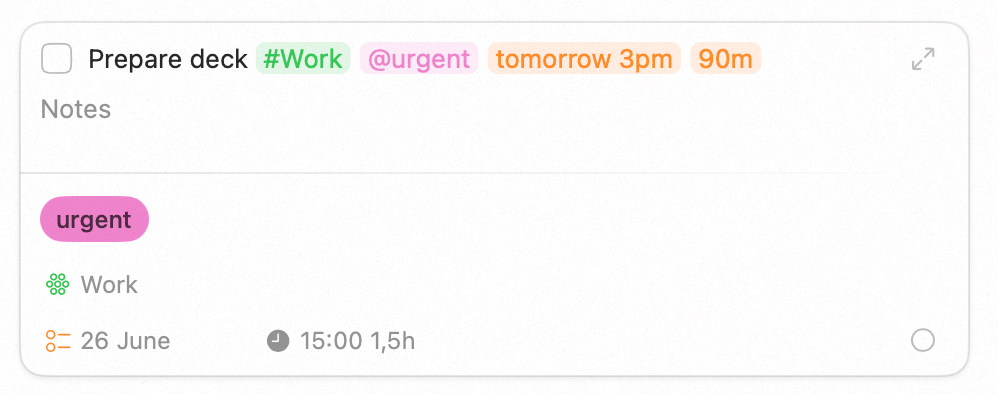
For example, type:
```
Prepare deck #Work @urgent tomorrow 3pm 90m
```
Sonto creates a task called **Prepare deck**, scheduled for tomorrow, blocked on your calendar from
3:00 to 4:30 pm, filed in your **Work** project, and tagged **urgent**. As you type, each detail it
recognises turns into a coloured pill so you can see exactly what it picked up.
 ## Where it works
Natural language input is part of the **task name field**, wherever you can edit it:
* When you add a new task.
* When you rename an existing one.
* In the [Focus](/reference/focus) view.
* In the **Edit in Panel** floating editor on Mac.
## Projects and areas — `#`
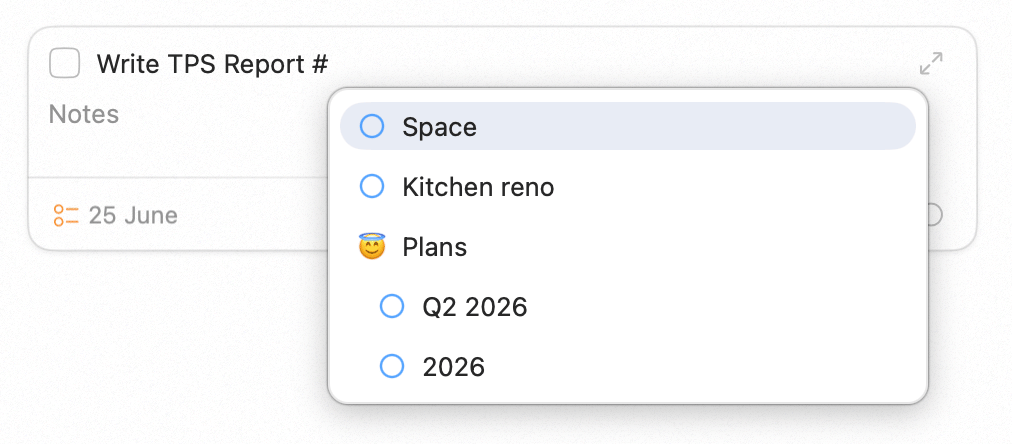
Type `#` to file a task in a [project or area](/reference/projects-areas). A list of your projects and
areas appears as you type; keep typing to narrow it, then pick one. Multi-word names work, so
`#Side Project` matches just fine.
## Where it works
Natural language input is part of the **task name field**, wherever you can edit it:
* When you add a new task.
* When you rename an existing one.
* In the [Focus](/reference/focus) view.
* In the **Edit in Panel** floating editor on Mac.
## Projects and areas — `#`
Type `#` to file a task in a [project or area](/reference/projects-areas). A list of your projects and
areas appears as you type; keep typing to narrow it, then pick one. Multi-word names work, so
`#Side Project` matches just fine.
 | You type | Result |
| ----------------------- | --------------------------------------------- |
| `Draft brief #Work` | Filed in the **Work** project |
| `Journal #Personal` | Filed in the **Personal** area |
| `Kickoff #Side Project` | Filed in **Side Project** (a multi-word name) |
A task lives in one place, so if you type more than one `#`, the last one wins. Only projects and areas
you've already created will match.
## Tags — `@`
Type `@` to add a [tag](/reference/tags). You can add as many as you like, and Sonto ignores
duplicates.
| You type | Result |
| ------------------------- | ------------------------------ |
| `Ship it @urgent` | Tagged **urgent** |
| `Groceries @errand @home` | Tagged **errand** and **home** |
If you type a tag that doesn't exist yet, choose **Add "…"** from the list and Sonto creates it on the
spot.
## Dates
Write when a task should happen and Sonto schedules it — either on a specific **day** or across a whole
**week**. A [week](/reference/planning/weekly-daily-planning) means *sometime this week, not a fixed day
yet*.
| You type | Scheduled to |
| -------------------------- | ------------------- |
| `Call plumber today` | Today |
| `Buy milk tomorrow` | Tomorrow |
| `Review notes next monday` | The coming Monday |
| `Renew passport jun 25` | 25 June |
| `Submit report in 3 days` | Three days from now |
| `Plan offsite next week` | Next week |
| `Retro week 25` | Week 25 |
| `Tidy garage this weekend` | This weekend |
A month on its own (`october`) lands on the 1st of that month.
Sonto only schedules dates in the **future**. Phrases like `yesterday` or `2 weeks ago` are left as
plain text in the name, so nothing gets scheduled into the past by accident.
## Times
Add a time and the task becomes a [calendar](/reference/calendar) time block.
| You type | Result |
| ----------------------------- | ----------------- |
| `Standup tomorrow 9am` | Tomorrow at 9:00 |
| `Call client tomorrow at 3pm` | Tomorrow at 15:00 |
| `Lunch friday at noon` | Friday at 12:00 |
| `Review tomorrow 9:30am` | Tomorrow at 9:30 |
| You type | Result |
| ----------------------- | --------------------------------------------- |
| `Draft brief #Work` | Filed in the **Work** project |
| `Journal #Personal` | Filed in the **Personal** area |
| `Kickoff #Side Project` | Filed in **Side Project** (a multi-word name) |
A task lives in one place, so if you type more than one `#`, the last one wins. Only projects and areas
you've already created will match.
## Tags — `@`
Type `@` to add a [tag](/reference/tags). You can add as many as you like, and Sonto ignores
duplicates.
| You type | Result |
| ------------------------- | ------------------------------ |
| `Ship it @urgent` | Tagged **urgent** |
| `Groceries @errand @home` | Tagged **errand** and **home** |
If you type a tag that doesn't exist yet, choose **Add "…"** from the list and Sonto creates it on the
spot.
## Dates
Write when a task should happen and Sonto schedules it — either on a specific **day** or across a whole
**week**. A [week](/reference/planning/weekly-daily-planning) means *sometime this week, not a fixed day
yet*.
| You type | Scheduled to |
| -------------------------- | ------------------- |
| `Call plumber today` | Today |
| `Buy milk tomorrow` | Tomorrow |
| `Review notes next monday` | The coming Monday |
| `Renew passport jun 25` | 25 June |
| `Submit report in 3 days` | Three days from now |
| `Plan offsite next week` | Next week |
| `Retro week 25` | Week 25 |
| `Tidy garage this weekend` | This weekend |
A month on its own (`october`) lands on the 1st of that month.
Sonto only schedules dates in the **future**. Phrases like `yesterday` or `2 weeks ago` are left as
plain text in the name, so nothing gets scheduled into the past by accident.
## Times
Add a time and the task becomes a [calendar](/reference/calendar) time block.
| You type | Result |
| ----------------------------- | ----------------- |
| `Standup tomorrow 9am` | Tomorrow at 9:00 |
| `Call client tomorrow at 3pm` | Tomorrow at 15:00 |
| `Lunch friday at noon` | Friday at 12:00 |
| `Review tomorrow 9:30am` | Tomorrow at 9:30 |
 A typed time only creates a calendar event when you've given Sonto access to your
[calendars](/reference/calendar). Without it, the task is still scheduled for the right day — there's
just no event on your calendar.
## Durations
Add a length to set how long the time block runs. Use it alongside a time.
| You type | Event length |
| ------------------------------ | ------------ |
| `Gym tomorrow 6pm 2h` | 2 hours |
| `Focus tomorrow 9am 90m` | 90 minutes |
| `Call tomorrow 3pm 1.5h` | 90 minutes |
| `Deep work tomorrow 10am 1h30` | 90 minutes |
## How it behaves
A few rules keep things predictable:
* **Future only** — past dates are never applied; they stay as plain text.
* **Last one wins, tags add up** — for the date and the project or area, the most recent one you type is
the one Sonto uses; tags are the exception and accumulate.
* **Your name stays clean** — every detail Sonto recognises is lifted out of the title. (If removing
everything would leave the task with no name, Sonto keeps the text instead.)
* **Plain numbers stay put** — Sonto only treats something as a time when it's sure (`3pm`, `9:30`), so
`Read chapter 12` keeps its number.
* **Change your mind easily** — press Backspace at the edge of a pill to turn it back into
ordinary text without deleting it.
## Works in your language
Natural language input follows your device's language. Dates and times are understood in **English,
Dutch, German, French, Spanish, Portuguese, and Japanese**; other languages fall back to English. So
`koop melk morgen` schedules "buy milk" for tomorrow on a Dutch system, just as `buy milk tomorrow`
does in English.
## Availability
Natural language input works on both **Mac** and **iPhone & iPad**, in the same task name field. On
iPhone, the keyboard opens automatically for a brand-new task; for an existing one, tap it to start
editing.
## Related
Everything a task can hold, and how to work with it.
Define your own labels and filter your views by them.
How typed times become time blocks on your calendar.
The name field understands natural language here too.
A typed time only creates a calendar event when you've given Sonto access to your
[calendars](/reference/calendar). Without it, the task is still scheduled for the right day — there's
just no event on your calendar.
## Durations
Add a length to set how long the time block runs. Use it alongside a time.
| You type | Event length |
| ------------------------------ | ------------ |
| `Gym tomorrow 6pm 2h` | 2 hours |
| `Focus tomorrow 9am 90m` | 90 minutes |
| `Call tomorrow 3pm 1.5h` | 90 minutes |
| `Deep work tomorrow 10am 1h30` | 90 minutes |
## How it behaves
A few rules keep things predictable:
* **Future only** — past dates are never applied; they stay as plain text.
* **Last one wins, tags add up** — for the date and the project or area, the most recent one you type is
the one Sonto uses; tags are the exception and accumulate.
* **Your name stays clean** — every detail Sonto recognises is lifted out of the title. (If removing
everything would leave the task with no name, Sonto keeps the text instead.)
* **Plain numbers stay put** — Sonto only treats something as a time when it's sure (`3pm`, `9:30`), so
`Read chapter 12` keeps its number.
* **Change your mind easily** — press Backspace at the edge of a pill to turn it back into
ordinary text without deleting it.
## Works in your language
Natural language input follows your device's language. Dates and times are understood in **English,
Dutch, German, French, Spanish, Portuguese, and Japanese**; other languages fall back to English. So
`koop melk morgen` schedules "buy milk" for tomorrow on a Dutch system, just as `buy milk tomorrow`
does in English.
## Availability
Natural language input works on both **Mac** and **iPhone & iPad**, in the same task name field. On
iPhone, the keyboard opens automatically for a brand-new task; for an existing one, tap it to start
editing.
## Related
Everything a task can hold, and how to work with it.
Define your own labels and filter your views by them.
How typed times become time blocks on your calendar.
The name field understands natural language here too.