> ## Documentation Index
> Fetch the complete documentation index at: https://help.sonto.app/llms.txt
> Use this file to discover all available pages before exploring further.
# Plan your Year and Quarter
> Plan states, linking, and the Plans area — the reference for long-term planning
A step-by-step guide to planning a quarter from start to finish.
Yearly and quarterly **plans** are documents you create to capture your [intention](/reference/glossary#intention),
your [groups](/reference/glossary#group), and the goals or [milestones](/reference/glossary#milestone)
under them. Unlike planning a day or week — which simply schedules tasks — a plan is a thing in its own
right that lives in your sidebar.
## Starting a plan
There are a few ways to begin:
* On Mac, click `File → Planning → Plan your Quarter or Year…`.
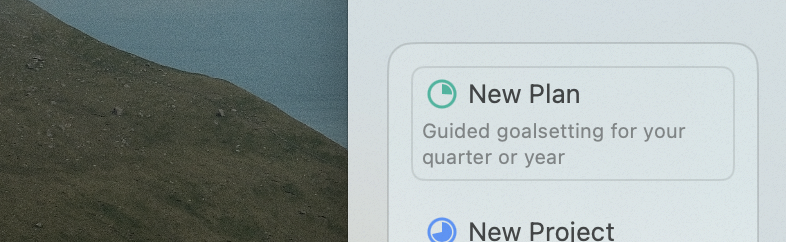
* Hover the **+** at the bottom of the sidebar and choose **New Plan**.
* Sonto also prompts you near the start of a new quarter or year.
* On iPhone, tap the **+** on the home screen and choose **New Plan**.
 ## The guided flow
Creating a plan puts you in planning mode, which walks you through four steps — **Review → Intention →
Plan → Finalize** — and then you commit. For the full step-by-step, see the
[tutorial](/guides/planning-your-year-and-quarter).
The guided step-by-step flow is currently a **Mac** feature. You can create plans on iPhone, but
without the guided flow.
It's recommended to plan your **year before your quarter**, and your **quarter before your week or
day** — each level anchors the next. That said, starting at the quarter is perfectly fine if a year
feels like too much.
## Plans live in your sidebar
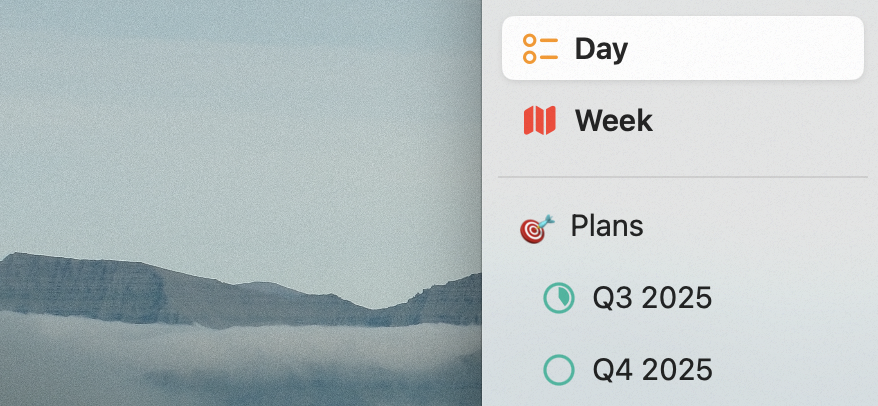
A plan is a document — think of it as a roadmap with your goals and vision — and it lives in your
sidebar, always a click away.
## The guided flow
Creating a plan puts you in planning mode, which walks you through four steps — **Review → Intention →
Plan → Finalize** — and then you commit. For the full step-by-step, see the
[tutorial](/guides/planning-your-year-and-quarter).
The guided step-by-step flow is currently a **Mac** feature. You can create plans on iPhone, but
without the guided flow.
It's recommended to plan your **year before your quarter**, and your **quarter before your week or
day** — each level anchors the next. That said, starting at the quarter is perfectly fine if a year
feels like too much.
## Plans live in your sidebar
A plan is a document — think of it as a roadmap with your goals and vision — and it lives in your
sidebar, always a click away.
 ## Updating plan progress
As the quarter or year unfolds, click a plan in the sidebar and check off what you've completed; long-
click a checkbox to mark something in progress. Plans behave much like projects.
When a plan is finished — at the end of the period, or once you've done what you set out to — **close**
it by clicking the green progress pie next to its title. Closed plans leave the sidebar to keep it
uncluttered; you can always find them in the Plans area.
## Updating plan progress
As the quarter or year unfolds, click a plan in the sidebar and check off what you've completed; long-
click a checkbox to mark something in progress. Plans behave much like projects.
When a plan is finished — at the end of the period, or once you've done what you set out to — **close**
it by clicking the green progress pie next to its title. Closed plans leave the sidebar to keep it
uncluttered; you can always find them in the Plans area.
 ## Plan states
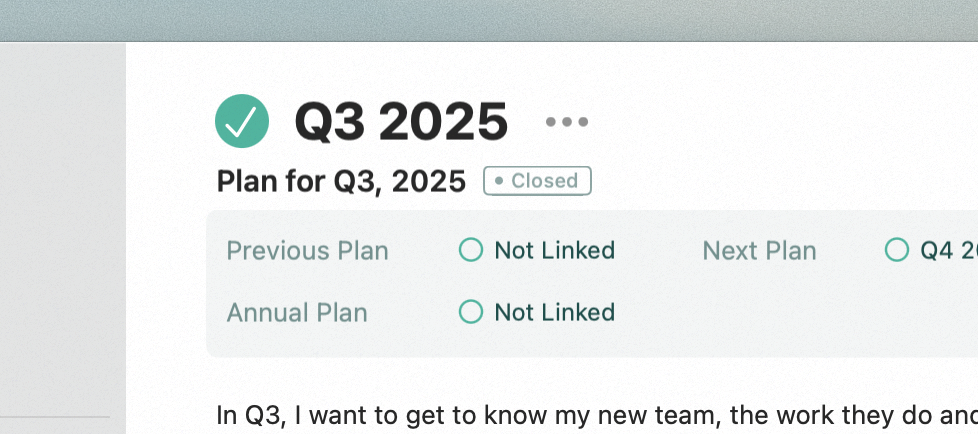
A small badge below a plan's title shows its state:
* **Active** — planned, current, and open. The stuff to focus on.
* **Past** — planned but no longer current, and still open. Worth reviewing and closing.
* **Future** — planned but starts later. Prepared, but not yet begun.
* **Draft** — you haven't finished planning it yet.
* **Closed** — reviewed and done.
## Linking plans
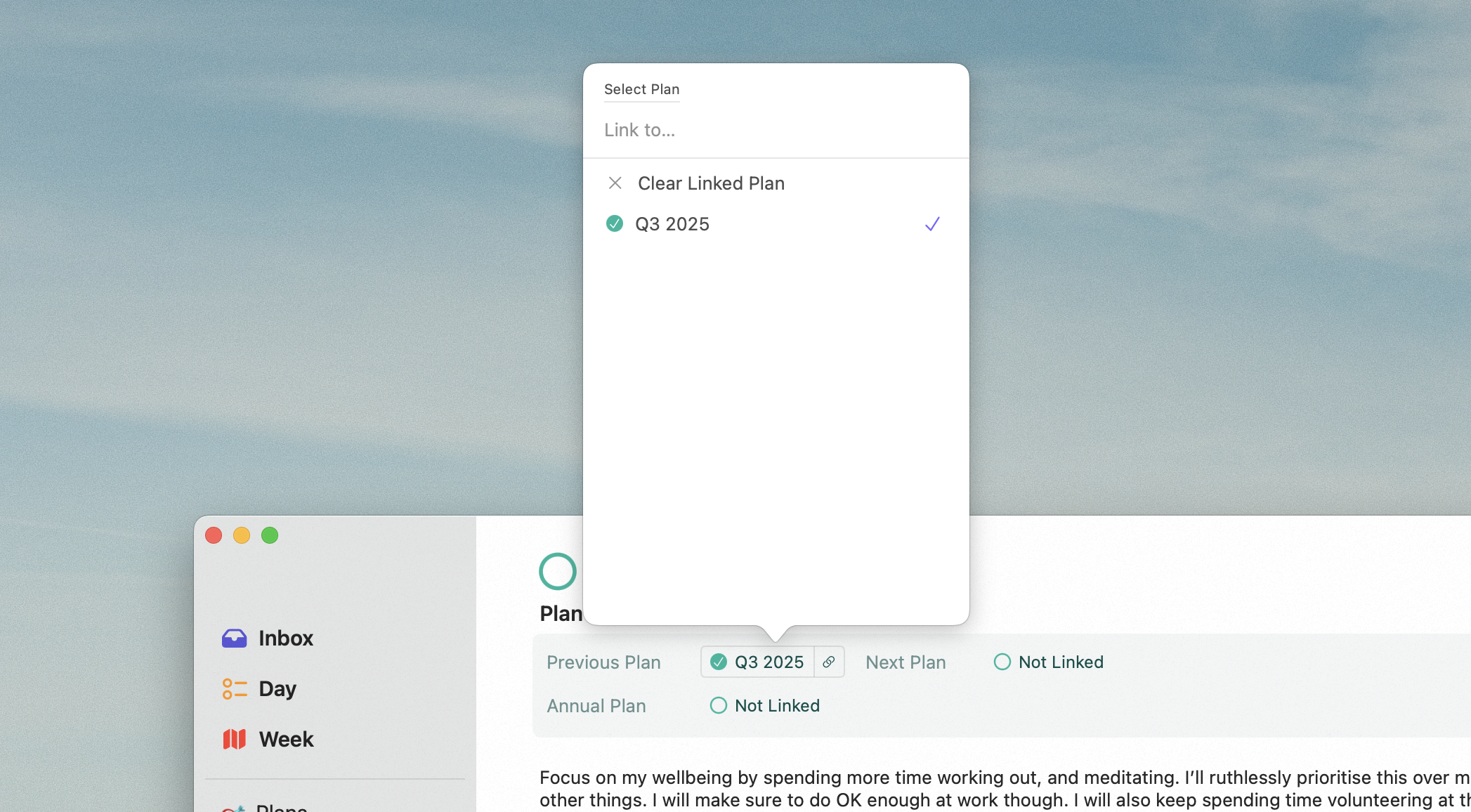
When you create a plan, Sonto links it to relevant others — the quarter or year before it, or the year
a quarter belongs to. Linking lets Sonto show the right previous plan during the Review step, and lets
you jump quickly between plans. Set links in the new-plan dialog, and change them later on the plan page.
## Plan states
A small badge below a plan's title shows its state:
* **Active** — planned, current, and open. The stuff to focus on.
* **Past** — planned but no longer current, and still open. Worth reviewing and closing.
* **Future** — planned but starts later. Prepared, but not yet begun.
* **Draft** — you haven't finished planning it yet.
* **Closed** — reviewed and done.
## Linking plans
When you create a plan, Sonto links it to relevant others — the quarter or year before it, or the year
a quarter belongs to. Linking lets Sonto show the right previous plan during the Review step, and lets
you jump quickly between plans. Set links in the new-plan dialog, and change them later on the plan page.
 ## The Plans area
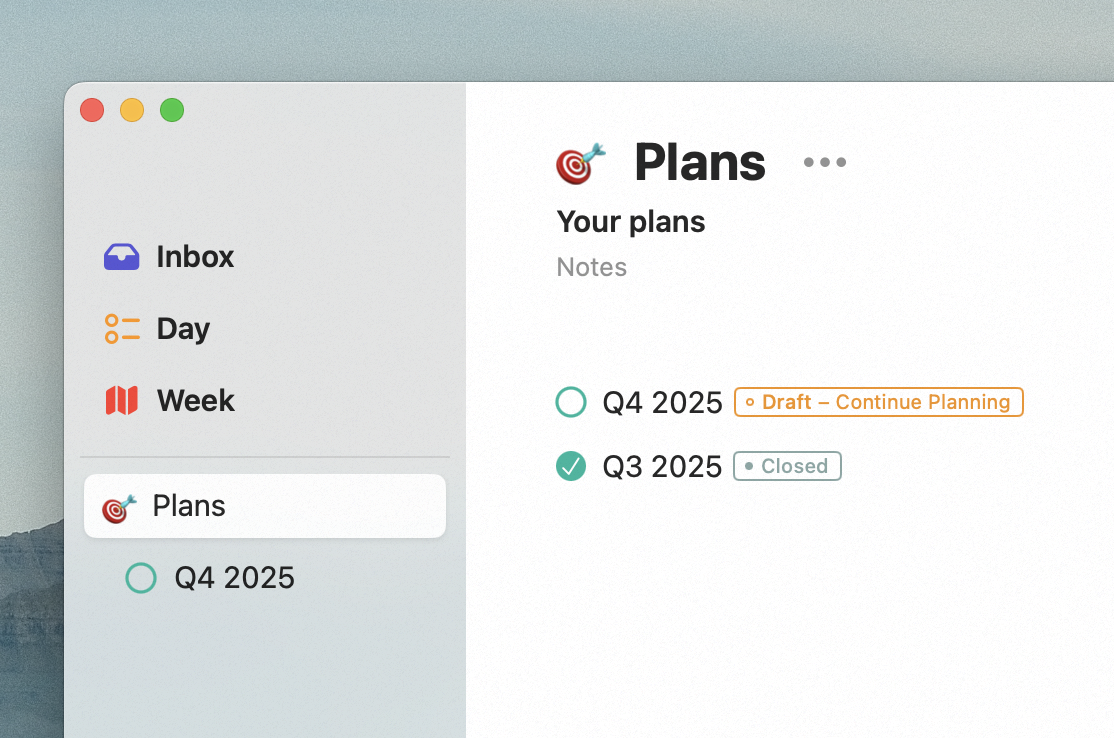
New plans are gathered in a `🎯 Plans` area, created automatically with your first plan. Closed plans
leave the sidebar but remain here, so current and past plans are always in one place.
## The Plans area
New plans are gathered in a `🎯 Plans` area, created automatically with your first plan. Closed plans
leave the sidebar but remain here, so current and past plans are always in one place.
 ## Multiple plans for the same period
You can create more than one plan for the same period — for example, separate work and personal plans,
so you can share your work plan without revealing everything personal. Double-click a plan's title to
rename it to something more descriptive.
## Multiple plans for the same period
You can create more than one plan for the same period — for example, separate work and personal plans,
so you can share your work plan without revealing everything personal. Double-click a plan's title to
rename it to something more descriptive.
 ## Related
The shorter routines that draw on your plans.
Intention, goal, milestone, group, intensity score.
## Related
The shorter routines that draw on your plans.
Intention, goal, milestone, group, intensity score.