> ## Documentation Index
> Fetch the complete documentation index at: https://help.sonto.app/llms.txt
> Use this file to discover all available pages before exploring further.
# Projects & Areas
> Making the most of areas and projects
Get introduced to projects and areas in Sonto.
## The difference between projects and areas
An **area** represents an ongoing part of your life, or a role you play. Like "work", "family" or "marketing".
A **project** on the other hand, is finite. It has a clear outcome in mind and you're working towards a
day where you can mark the project complete and close it.
## Creating new projects and areas
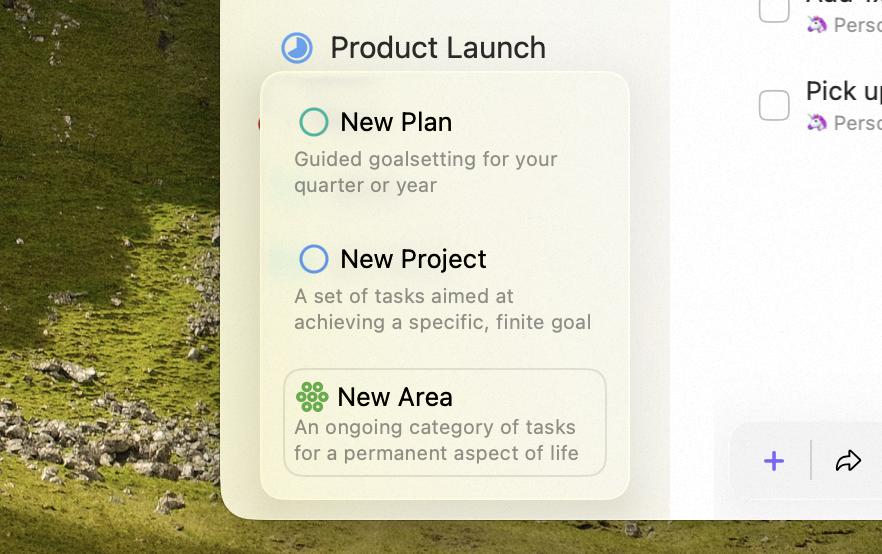
You can create a new project or area from the File menu, or from + button at the bottom of the sidebar.
When you hover over that +, a menu will pop up.
 ## Organising tasks in projects and areas
At first glance, a project or area might look exactly like the inbox -- but that is not the case.
One superpower that projects and areas have is [groups](/reference/glossary#group). Groups allow you to create structure.
A group has a name, and you can drag tasks into it. (These are *task groups* — distinct from the planning groups you create in a quarterly plan.)
## Organising tasks in projects and areas
At first glance, a project or area might look exactly like the inbox -- but that is not the case.
One superpower that projects and areas have is [groups](/reference/glossary#group). Groups allow you to create structure.
A group has a name, and you can drag tasks into it. (These are *task groups* — distinct from the planning groups you create in a quarterly plan.)
 ## Project progress and completion
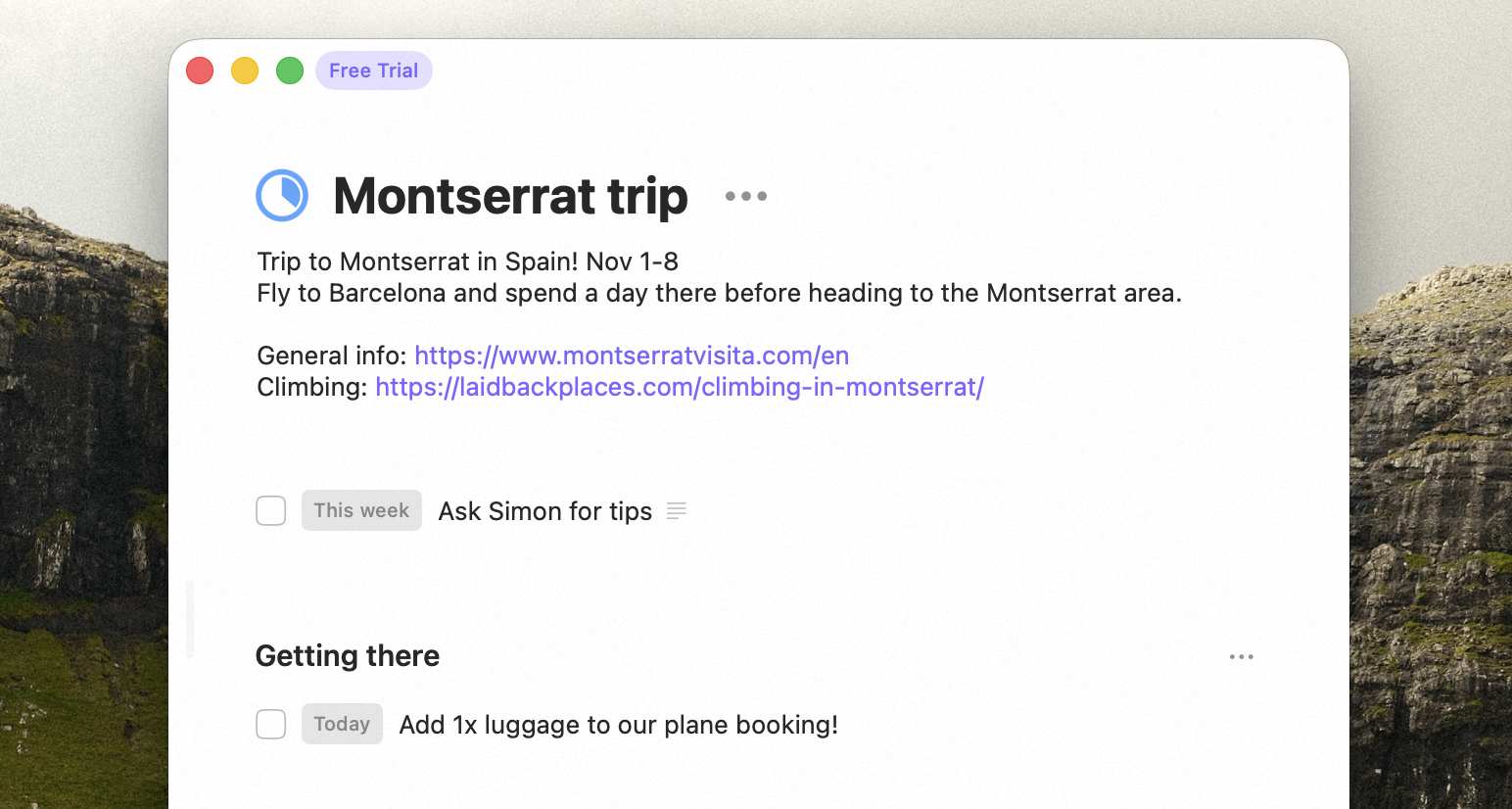
As you check tasks off, you'll notice the progress pie fills up. This provides a visual indicator
of the progress of your project.
## Project progress and completion
As you check tasks off, you'll notice the progress pie fills up. This provides a visual indicator
of the progress of your project.
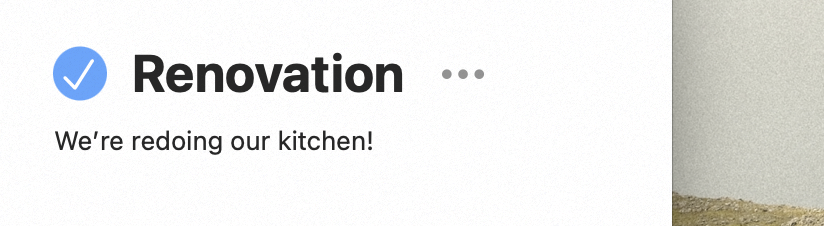
 You can click the progress pie to complete (or un-complete) the project. If there are still open tasks,
you'll be asked if you are sure.
You can click the progress pie to complete (or un-complete) the project. If there are still open tasks,
you'll be asked if you are sure.
 ## Project deadlines
You can add a deadline to a project. When you do this and the deadline is near (less than 30 days away) it will show up in your sidebar to remind you. The week of the deadline, the project will also show up in your Week screen, and on the day of the deadline, on your Day screen.
## Area emoji
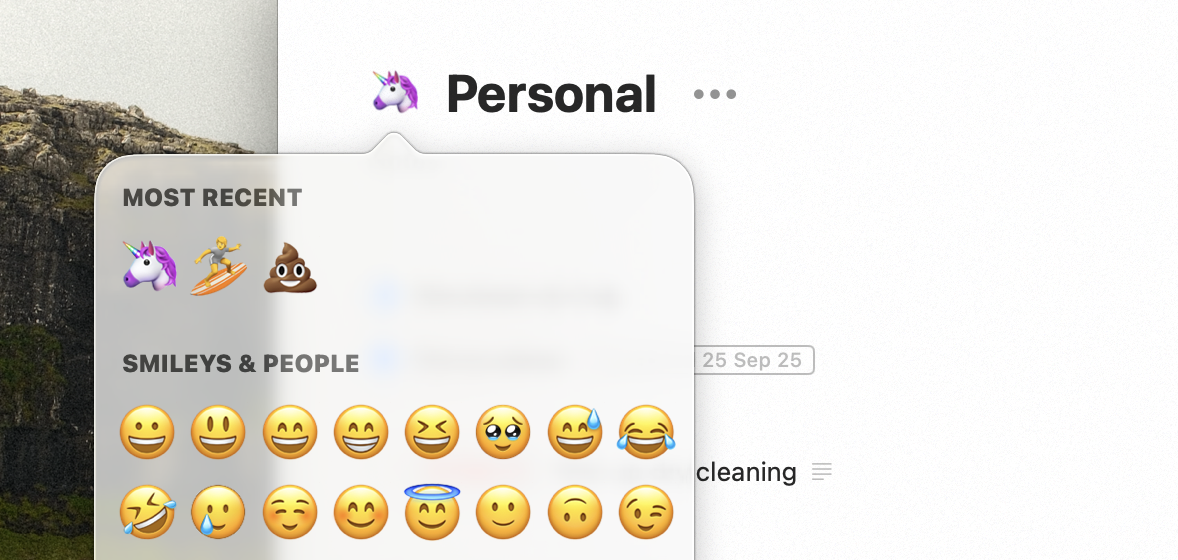
Areas can have an emoji, to give them some colour. You can set an emoji using the … menu or (on Mac) by
clicking the icon. Double clicking the icon removes the emoji.
## Project deadlines
You can add a deadline to a project. When you do this and the deadline is near (less than 30 days away) it will show up in your sidebar to remind you. The week of the deadline, the project will also show up in your Week screen, and on the day of the deadline, on your Day screen.
## Area emoji
Areas can have an emoji, to give them some colour. You can set an emoji using the … menu or (on Mac) by
clicking the icon. Double clicking the icon removes the emoji.
 ## Availability
Projects and areas are available on both **Mac** and **iPhone**.
## Related
Where projects and areas sit among your screens.
A cross-cutting alternative to projects and areas.
## Availability
Projects and areas are available on both **Mac** and **iPhone**.
## Related
Where projects and areas sit among your screens.
A cross-cutting alternative to projects and areas.