> ## Documentation Index
> Fetch the complete documentation index at: https://help.sonto.app/llms.txt
> Use this file to discover all available pages before exploring further.
# Screens
> Finding your way around Sonto — inbox, day, week, projects, and areas
Get introduced to the basic functionality of Sonto.
Sonto is organised around a handful of screens. Each one answers a different question — *what's
unsorted?*, *what am I doing today?*, *what's coming this week?*, *what's the bigger picture?*
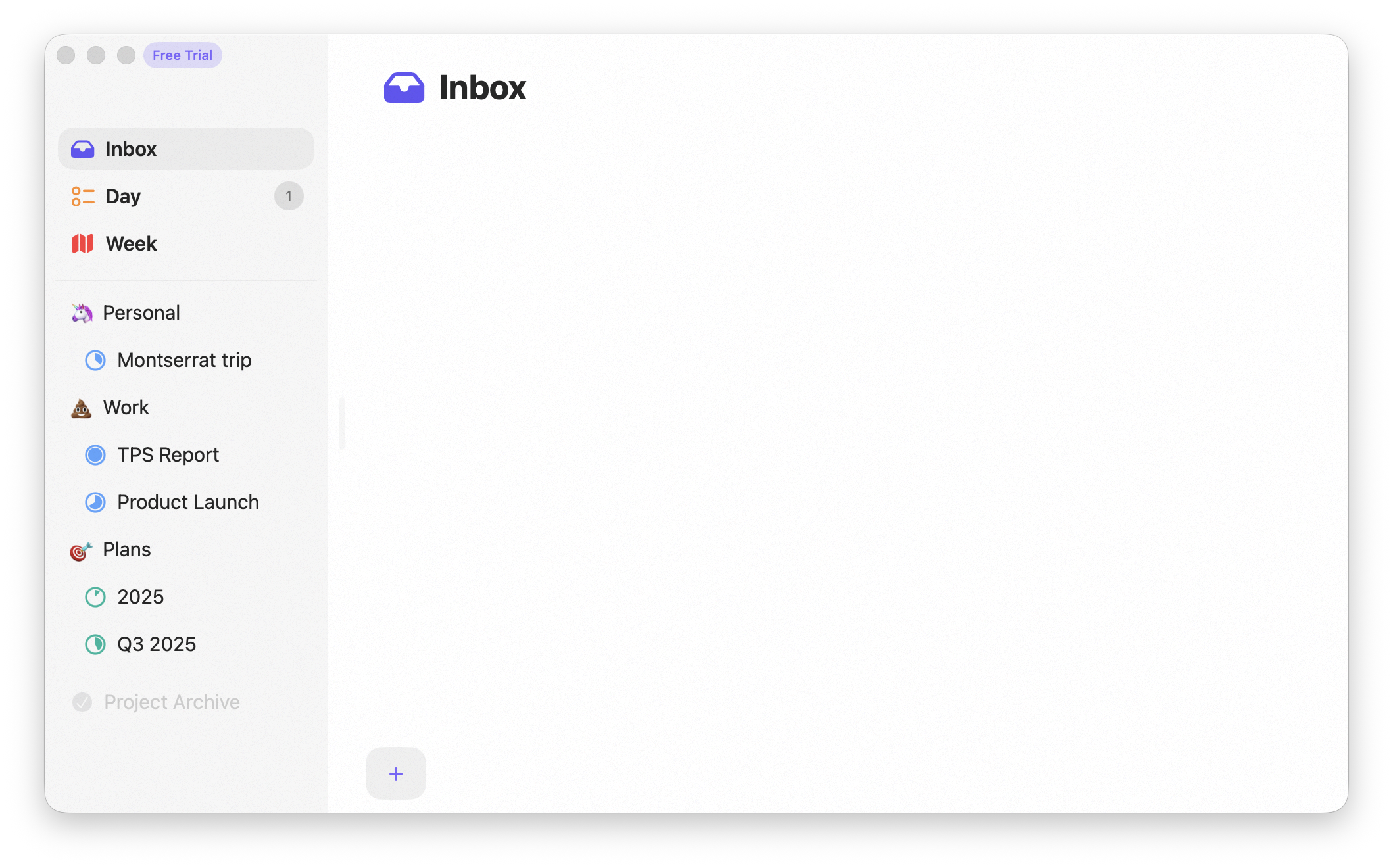
## Inbox
This is a great place to capture things that come up ad-hoc. Go through this list occasionally (during
daily planning, for instance) and *move everything out* — either schedule it, assign it to a project or
area, or delete it. That keeps the inbox a functional temporary staging area rather than a place things
pile up.
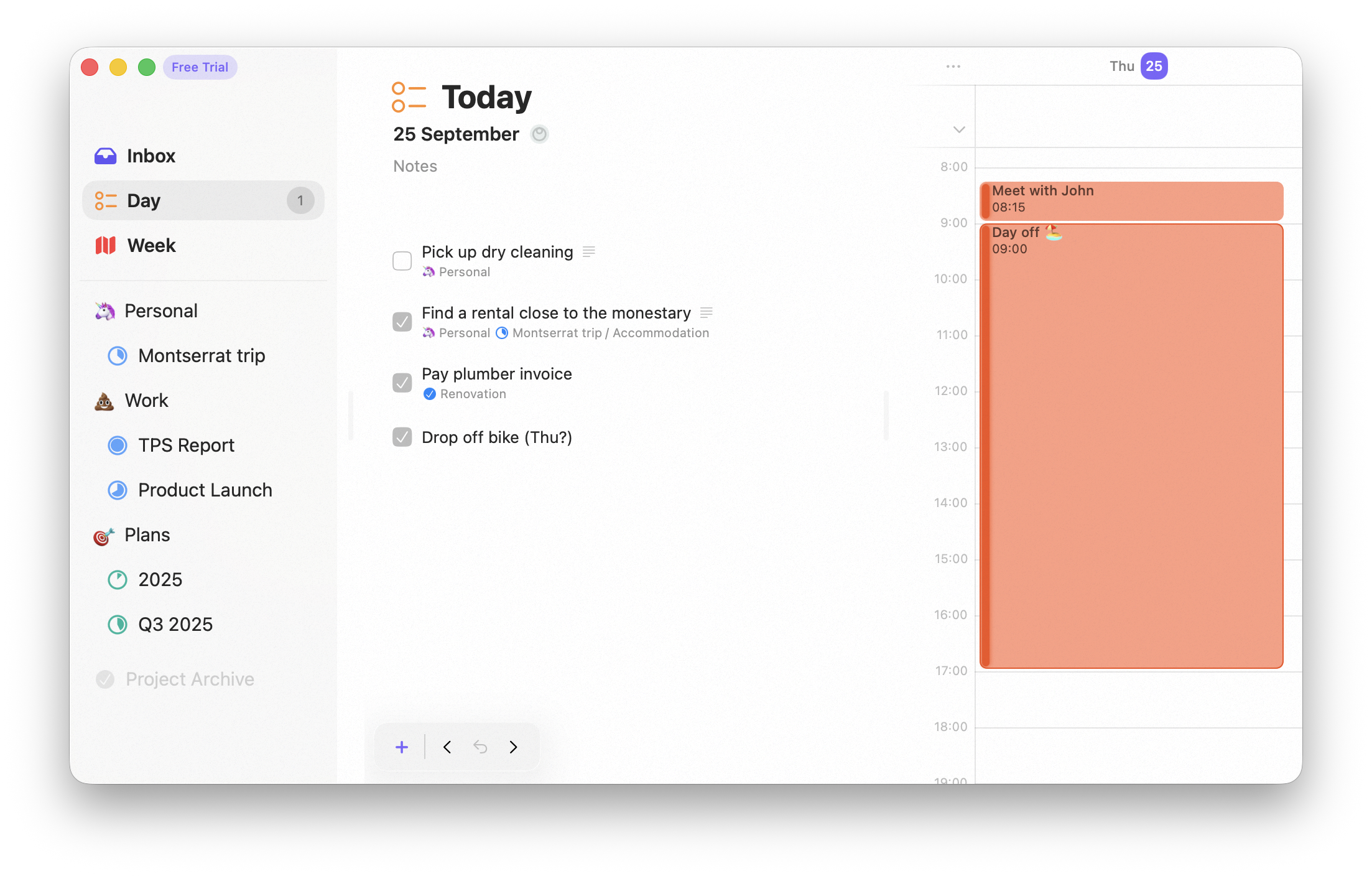
 ## Day
This is where you spend most of your time. All your work for the day is here, including your schedule
and calendar. Staying on this screen helps you focus on what matters now.
## Day
This is where you spend most of your time. All your work for the day is here, including your schedule
and calendar. Staying on this screen helps you focus on what matters now.
 ## Week
This screen gives you an overview of what's coming up this week. You can schedule a task *on the week* —
meaning you want it done sometime this week, but not on a specific day yet. During daily planning, you
review open tasks for the week and pull what you can into today.
## Week
This screen gives you an overview of what's coming up this week. You can schedule a task *on the week* —
meaning you want it done sometime this week, but not on a specific day yet. During daily planning, you
review open tasks for the week and pull what you can into today.
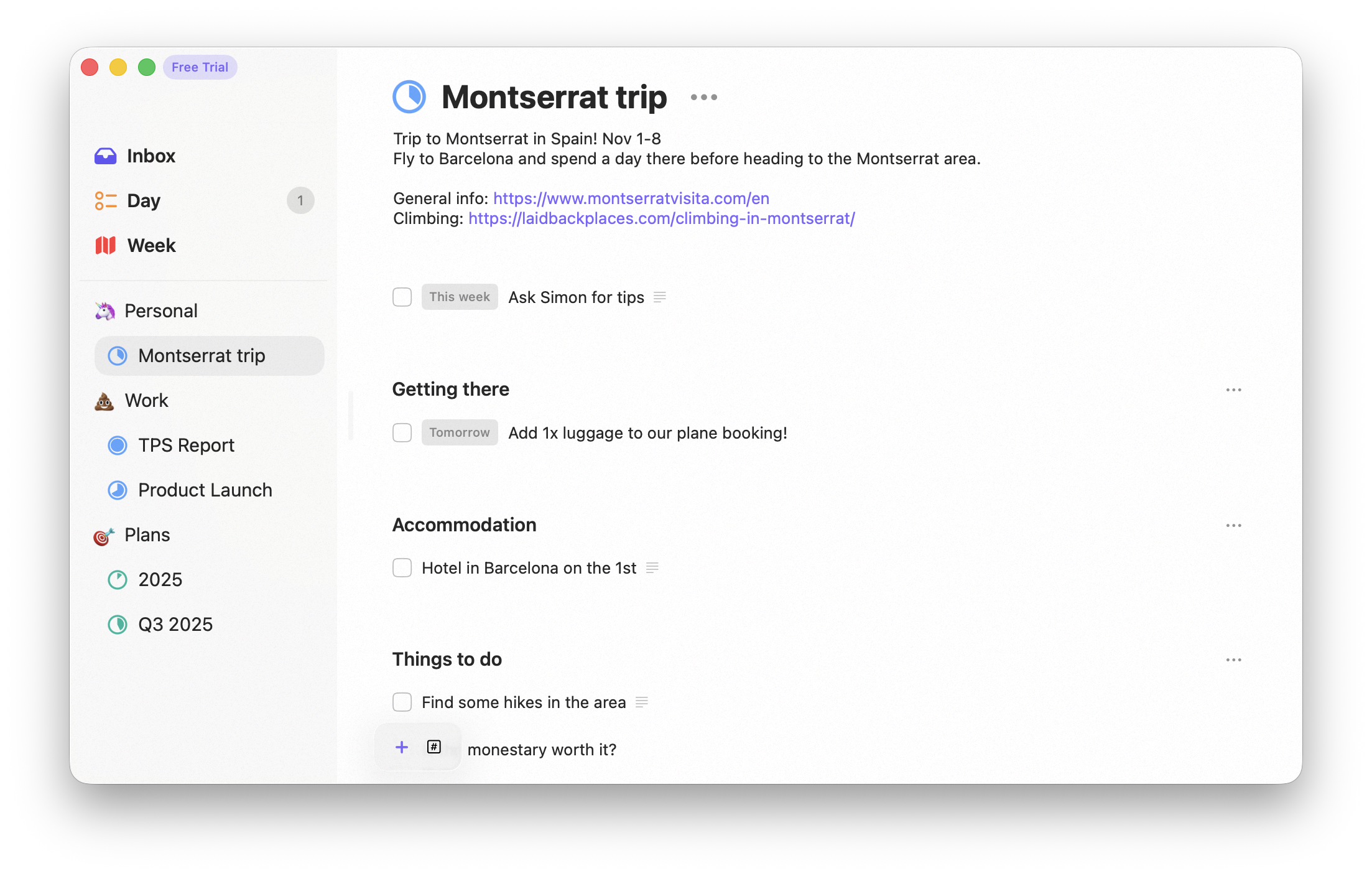
 ## Projects
When you need more structure, group tasks into a [project](/reference/projects-areas). A project should
have a clear outcome you're working toward and can mark complete.
## Projects
When you need more structure, group tasks into a [project](/reference/projects-areas). A project should
have a clear outcome you're working toward and can mark complete.
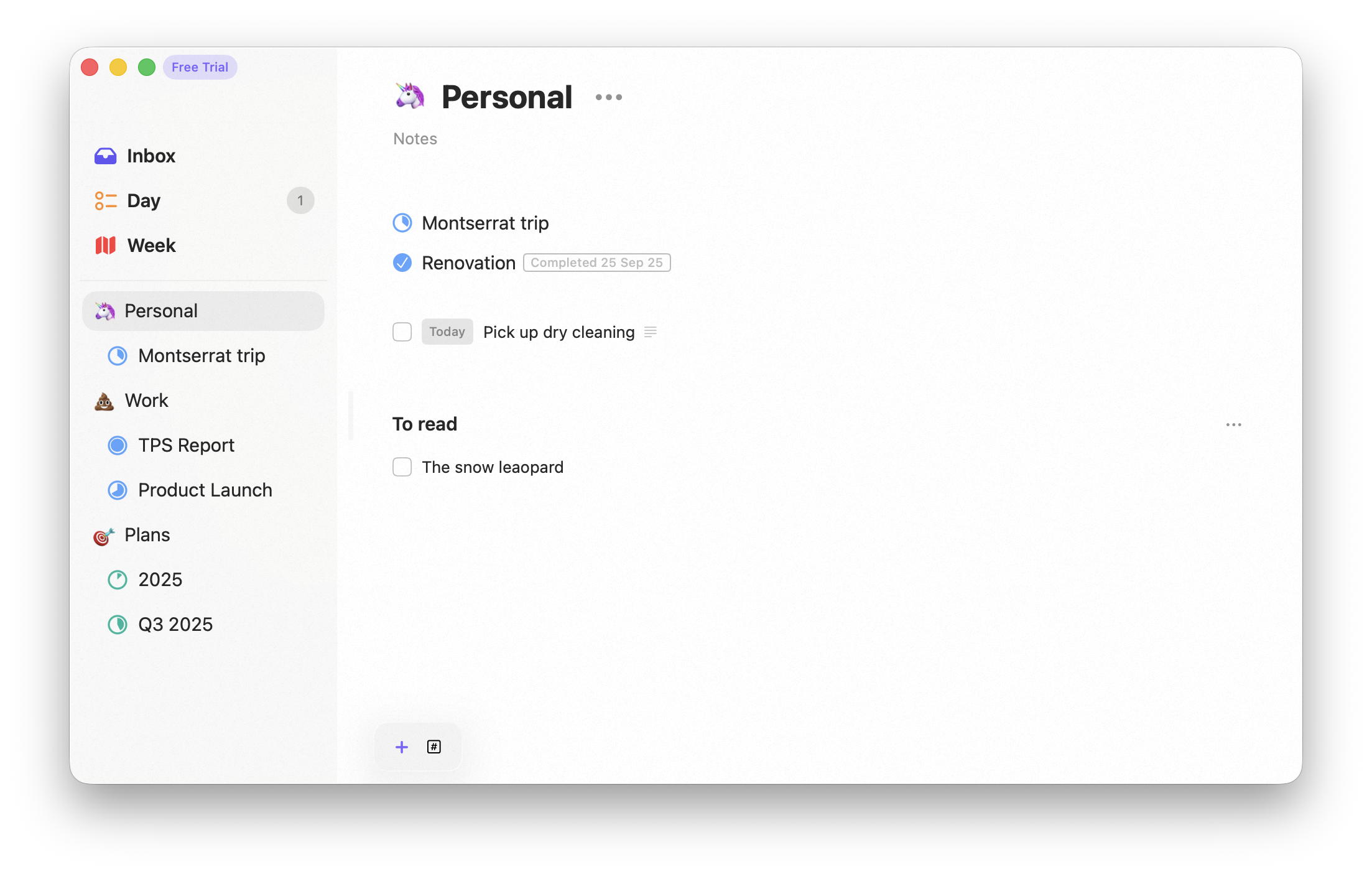
 ## Areas
For ongoing parts of your life, create an [area](/reference/projects-areas). Areas represent
never-ending aspects like *work* or *family*. A project can live inside an area — drag the project onto
the area to nest it.
## Areas
For ongoing parts of your life, create an [area](/reference/projects-areas). Areas represent
never-ending aspects like *work* or *family*. A project can live inside an area — drag the project onto
the area to nest it.
 ## Finding anything
Wherever a task lives, you can jump straight to it with [Search](/reference/search), and narrow any
screen with [tag filters](/reference/tags).
## Availability
All of these screens are available on both **Mac** and **iPhone**.
## Related
What a task can hold.
Structure beyond the inbox.
## Finding anything
Wherever a task lives, you can jump straight to it with [Search](/reference/search), and narrow any
screen with [tag filters](/reference/tags).
## Availability
All of these screens are available on both **Mac** and **iPhone**.
## Related
What a task can hold.
Structure beyond the inbox.