> ## Documentation Index
> Fetch the complete documentation index at: https://help.sonto.app/llms.txt
> Use this file to discover all available pages before exploring further.
# Search
> Find any task, wherever it lives in Sonto
Search finds your tasks no matter where they are — in a project, an area, the inbox, a past day, or a
future week. Results can be sorted and filtered so you can zero in quickly.
## Search on Mac
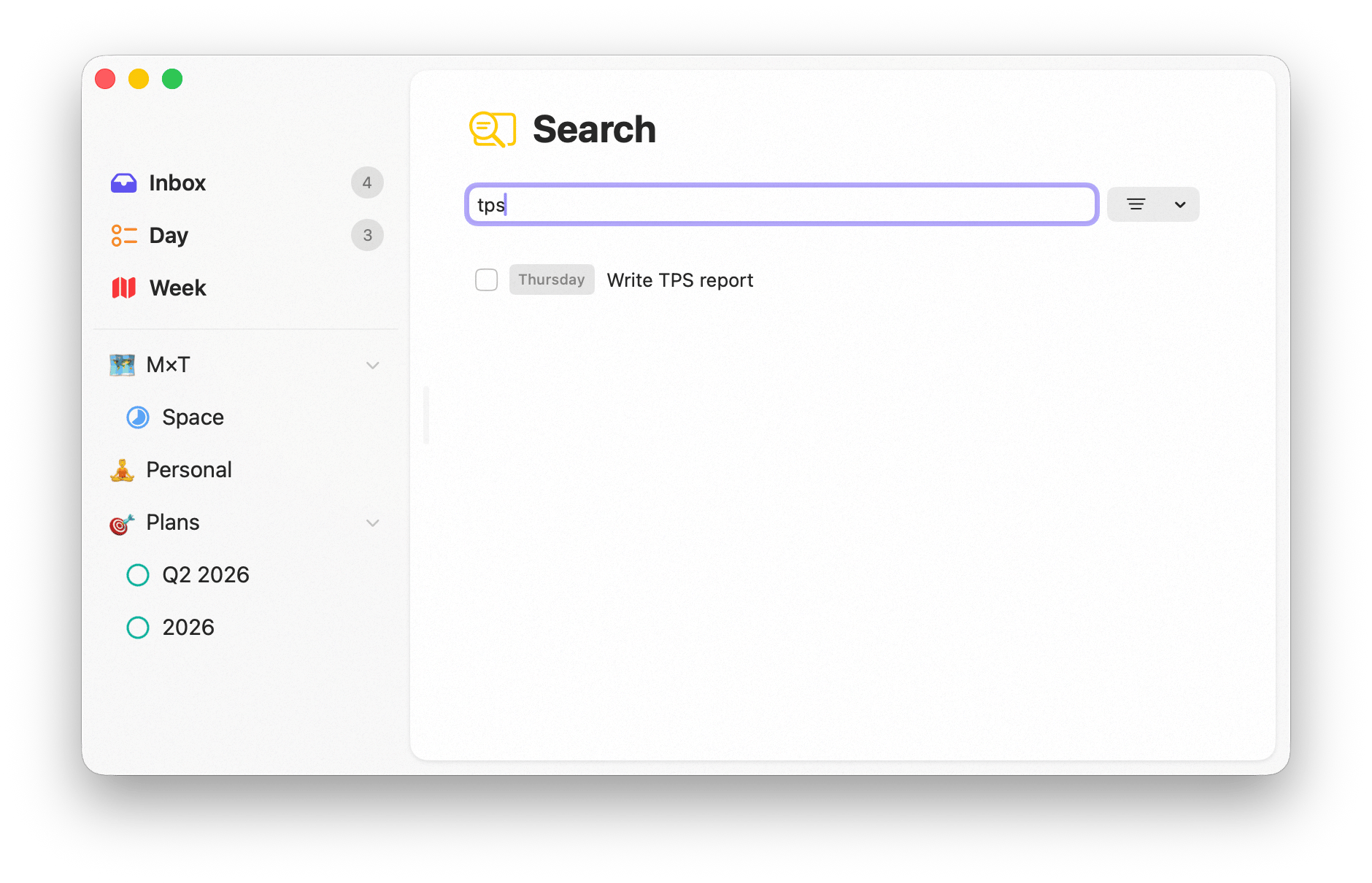
Press Cmd + \\ to open search. The same panel lets you jump to any screen in the
app, so you can navigate and search from one place. Start typing to match tasks by their text.
 ## Search on iPhone
Tap the **magnifying glass** on your Home Screen to search or navigate from anywhere in the app.
## Sorting and filtering
Within results you can sort and filter to narrow things down — handy when a common word matches many
tasks. Combine search with [tags](/reference/tags) to focus on a specific slice of your work.
## Availability
Search is available on both **Mac** and **iPhone**.
## Related
Where your tasks live across Sonto.
Filter across everything by tag.
## Search on iPhone
Tap the **magnifying glass** on your Home Screen to search or navigate from anywhere in the app.
## Sorting and filtering
Within results you can sort and filter to narrow things down — handy when a common word matches many
tasks. Combine search with [tags](/reference/tags) to focus on a specific slice of your work.
## Availability
Search is available on both **Mac** and **iPhone**.
## Related
Where your tasks live across Sonto.
Filter across everything by tag.