> ## Documentation Index
> Fetch the complete documentation index at: https://help.sonto.app/llms.txt
> Use this file to discover all available pages before exploring further.
# Tasks
> Everything a task can hold, and how to work with it
Get introduced to the basic functionality of Sonto.
A **task** is the atomic unit of work in Sonto. Everything you do flows through tasks — capturing them,
scheduling them, and checking them off.
## Adding tasks
Click or tap the purple `+` button to add a task. On Mac you can also press Cmd + N.
 ## Type tasks naturally
You can set a task up as you name it. Type a date, a time, a project or area, and tags right into the
name, and Sonto files them for you — `Prepare deck #Work @urgent tomorrow 3pm` schedules the task for
tomorrow at 3 pm, files it in **Work**, and tags it **urgent**, leaving the name as *Prepare deck*. See
[Natural language input](/reference/natural-language-input) for everything it understands.
## Editing tasks
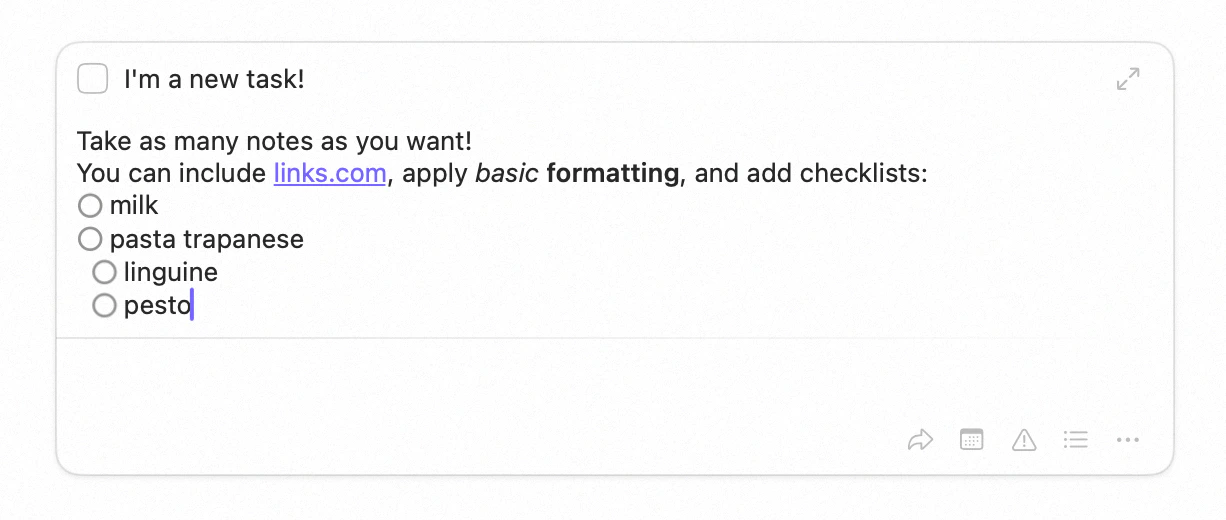
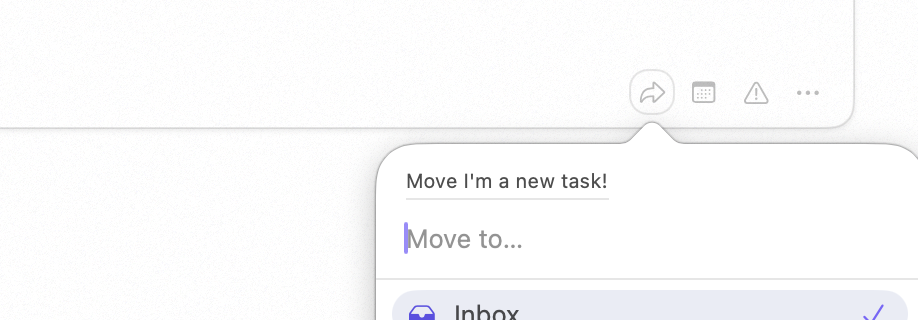
To begin editing a task, double-click it (or tap it on iPhone), or select it with the arrow keys and
press Return. The buttons at the bottom-right let you take quick action — move it, schedule
it, or reach many more actions through the … menu.
## Type tasks naturally
You can set a task up as you name it. Type a date, a time, a project or area, and tags right into the
name, and Sonto files them for you — `Prepare deck #Work @urgent tomorrow 3pm` schedules the task for
tomorrow at 3 pm, files it in **Work**, and tags it **urgent**, leaving the name as *Prepare deck*. See
[Natural language input](/reference/natural-language-input) for everything it understands.
## Editing tasks
To begin editing a task, double-click it (or tap it on iPhone), or select it with the arrow keys and
press Return. The buttons at the bottom-right let you take quick action — move it, schedule
it, or reach many more actions through the … menu.
 You can do almost everything to a task from the keyboard. See
[Keyboard shortcuts](/reference/other-topics/keyboard-shortcuts).
## What a task can hold
A single task can carry all of the following:
* **Important flag** — mark a task important so it stands out and surfaces on your day
(Cmd + T).
* **Scheduling** — assign a task to a **day** or a **week**, or place it on the
[calendar](/reference/calendar) as a time block.
* **Notes & checklist** — context, links, formatting, and sub-tasks. See
[Notes & Checklists](/reference/notes).
* **Project or area** — file a task in a [project or area](/reference/projects-areas), or leave it in
the [inbox](/reference/screens).
* **Tags** — label a task so it shows up across [tag filters](/reference/tags)
(Cmd + Shift + T).
* **Deadline** — a task inherits the deadline of its [project](/reference/projects-areas), which Sonto
surfaces as the date approaches.
## Task states
A task moves through three states:
* **Open** — not started.
* **In progress** — currently being worked on. Toggle with Cmd + R, or long-press
the checkbox.
* **Complete** — done. Toggle by clicking the checkbox or pressing Cmd + E.
## Repeating tasks
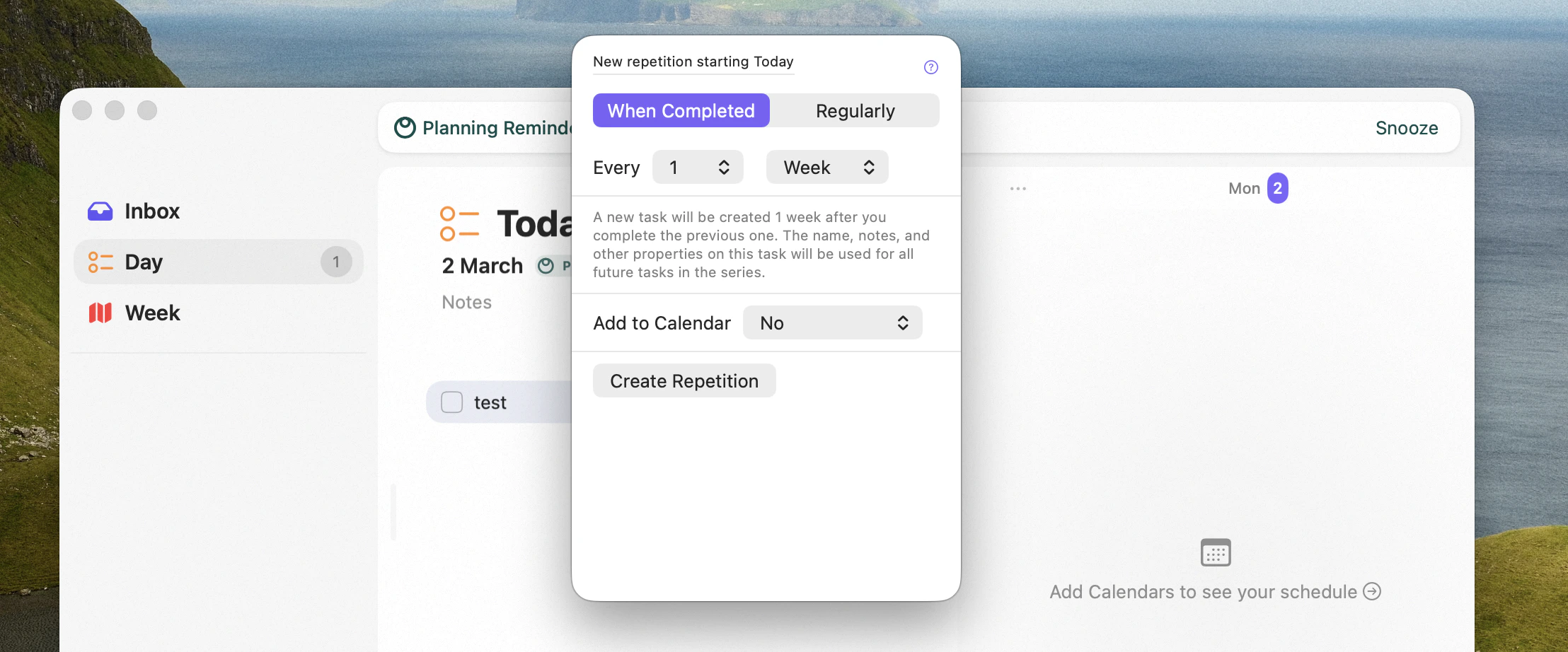
Any task can repeat — on a fixed schedule or when you complete it — and optionally add itself to your
calendar. See [Repeating tasks](/reference/repeating-tasks).
You can do almost everything to a task from the keyboard. See
[Keyboard shortcuts](/reference/other-topics/keyboard-shortcuts).
## What a task can hold
A single task can carry all of the following:
* **Important flag** — mark a task important so it stands out and surfaces on your day
(Cmd + T).
* **Scheduling** — assign a task to a **day** or a **week**, or place it on the
[calendar](/reference/calendar) as a time block.
* **Notes & checklist** — context, links, formatting, and sub-tasks. See
[Notes & Checklists](/reference/notes).
* **Project or area** — file a task in a [project or area](/reference/projects-areas), or leave it in
the [inbox](/reference/screens).
* **Tags** — label a task so it shows up across [tag filters](/reference/tags)
(Cmd + Shift + T).
* **Deadline** — a task inherits the deadline of its [project](/reference/projects-areas), which Sonto
surfaces as the date approaches.
## Task states
A task moves through three states:
* **Open** — not started.
* **In progress** — currently being worked on. Toggle with Cmd + R, or long-press
the checkbox.
* **Complete** — done. Toggle by clicking the checkbox or pressing Cmd + E.
## Repeating tasks
Any task can repeat — on a fixed schedule or when you complete it — and optionally add itself to your
calendar. See [Repeating tasks](/reference/repeating-tasks).
 ## Focus
To work on a task distraction-free, open it in [Focus](/reference/focus) — full screen, with everything
else out of the way (Cmd + . on Mac).
## Related
Where tasks live: inbox, day, week, projects, areas.
Every task action from the keyboard.
## Focus
To work on a task distraction-free, open it in [Focus](/reference/focus) — full screen, with everything
else out of the way (Cmd + . on Mac).
## Related
Where tasks live: inbox, day, week, projects, areas.
Every task action from the keyboard.