

Check out a video walkthrough showing AI with Sonto
Get introduced to AI in Sonto.
- Quick context: get a briefing of today, this week, or a specific project.
- Search and review: find tasks, check long-term plans, and spot what’s stuck.
- Plan with more context: connect other information sources to your agent for assisted goalsetting.
- Hands-on changes: create and update tasks/projects/areas/groups, and manage yearly/quarterly plans.
- “What does today look like in Sonto? Include events.”
- “Open my current week and highlight anything overdue.”
- “Get my action items from these meeting notes and add them to the Summer Promo project in Sonto.”
Turn on AI Access
The MCP server is included in the Mac version of Sonto.
Settings → AI:
- AI Access — the main switch. When off, no AI tool can reach Sonto. This also disables the
sontoCLI. - Allow changes — off by default (read-only). Turn it on to let AI create, edit and complete items. Toggling it restarts the server.
Endpoint, Port (default 2402), pairing code and CLI path live one level down: click
Use the CLI or connect to other AI Agents to open the Advanced page. You can change the port
while AI Access is on; the server restarts when you do.
Read-only vs allow changes
The Allow changes toggle decides what your AI tool can do.Read-only — Allow changes off
Pick this when you want safe visibility from your AI tool.- AI tools can read views, projects, areas, groups, and long-term plans.
- Write tools are not exposed.
- Any write attempt is rejected.
Allow changes on
Pick this when you want the AI to actively manage your Sonto data.- Includes all read tools.
- Adds write tools for task/project/area/group/plan management.
- Destructive actions require confirmation:
- Interactive confirmation when the MCP client supports elicitation, or
- Explicit
confirm_destructive: truewhen interactive confirmation is unavailable.
Connect an AI tool to Sonto
For the manual and CLI setups below, the pairing code is under Settings → AI → Use the CLI or
connect to other AI Agents → Advanced. Claude Desktop (the first option) doesn’t need one.
Claude Desktop (one click)
OpenSettings → AI and click Install Claude Desktop Connector. Claude Desktop opens and offers
to install the connector — accept, and you’re done. No pairing code, no config file.
Improved in 2.0. The connector Sonto installs is now a signed bundle pointing at the app’s
bundled command-line tool. In 1.7 it could start a second copy of Sonto instead of the tool and hang
waiting for a reply. If you installed the connector before 2.0, remove it in Claude Desktop and click
the button again.
Connecting manually
InSettings → AI, open Use the CLI or connect to other AI Agents and copy the Endpoint
shown there (for example: http://127.0.0.1:2402/).
Sonto MCP listens on localhost (127.0.0.1) and uses HTTP transport with OAuth.
During OAuth you’ll be asked for a time-based pairing code, shown on that same Advanced page. It
refreshes every ten minutes, so fetch it when you need it.
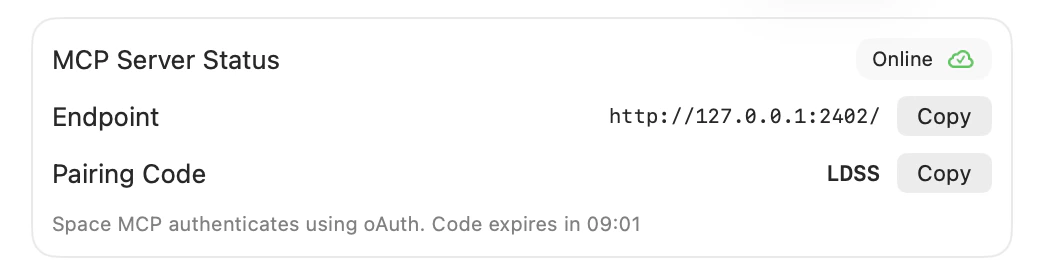
Time-based pairing code
Connecting to Claude Code CLI
Run:- Start Claude Code:
claude - Run
/mcp - Select
sonto(it will show as unauthenticated) - Confirm authentication
- Enter the pairing code when your browser opens
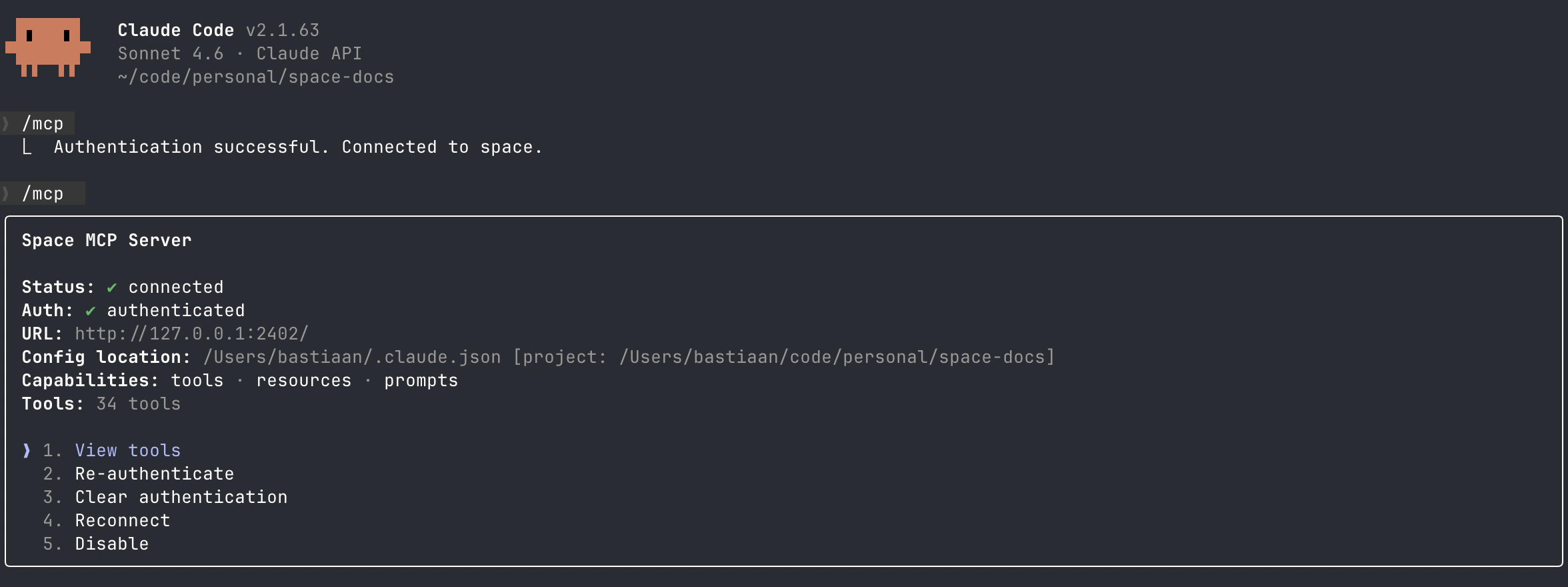
Claude inspecting Sonto MCP
Connecting to OpenAI Codex CLI
Run:Settings > AI).
The Codex Desktop app will automatically pick this registration up as well.
Connecting to OpenAI Codex Desktop App
- Open
Settings→MCP Servers - Click
+ Add server - Give the server a name (for example:
Sonto) - Select
Streamable HTTPas the transport - Enter
http://127.0.0.1:2402/as the URL
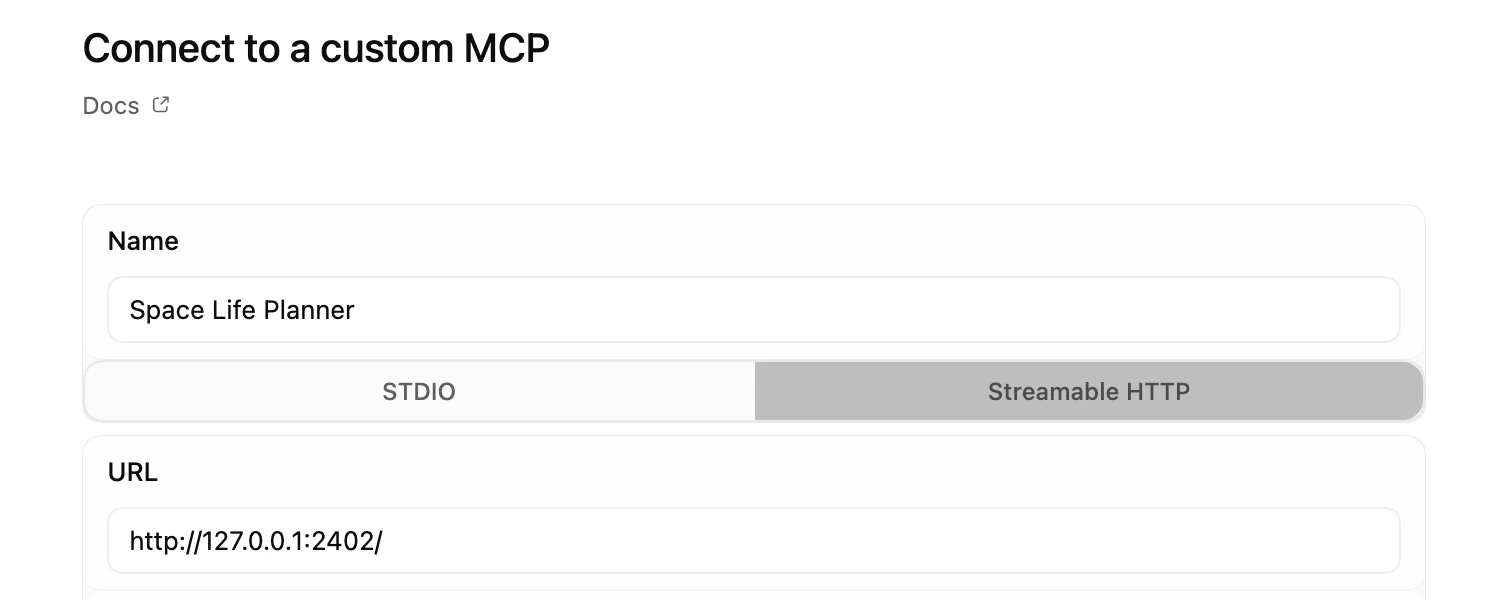
Codex Desktop
Save. An Authenticate button will appear next to the server.
Click it and enter the pairing code from Sonto (Settings > AI).

Codex Desktop
Connecting to Craft Agents
- In Craft Agents, go to
Sources→MCPs - Click
+ - When asked what to connect, enter “Connect to ‘Sonto’, an MCP server at http://127.0.0.1:2402/”
- Wait a bit, then allow opening the OAuth screen
- Enter the pairing code from Sonto (
Settings > AI)
Connected clients
Sonto lists every connected client on the Advanced page inSettings → AI. Click Disconnect
next to one to revoke its access immediately.
Reference: what you can do
Read operations
get_inbox,get_day,get_day_events,get_week,get_project,get_arealist_projects,list_areas,list_groupslist_long_term_plans,get_long_term_plansearch_todos
Write operations
Task operations:add_task,edit_task,delete_task,sort_tasksbulk_edit_tasks,bulk_delete_tasksschedule_task_event
add_project,edit_project,delete_projectadd_area,edit_area,delete_areaadd_group,edit_group,sort_groups,delete_group
edit_day,edit_weekdelete_completed_todos(project/area scope)
add_long_term_planedit_long_term_planlist_long_term_plans(defaults to active plans when no state filter is passed)
Prompts and resources (optional)
You can use Sonto with tools only. Prompts and resources are optional, but useful in clients that support them.Prompts
Prompts are pre-packaged workflows: Sonto bundles the right data plus a strong instruction template. Prompt families:- Briefings (quick overview):
day_brief,week_brief - Planning (actionable plans):
day_plan,week_plan - Operational review:
inbox_triage,project_review - Long-term planning:
ltp_summary,ltp_status_update,ltp_next_actions,ltp_risks,ltp_execution_alignment,ltp_plan_assist
Resources
Resources are read-only snapshots that some MCP clients can preload before generating a response. Examples:sonto://context/todaysonto://context/this_weeksonto://context/day/{date}sonto://context/week/{year}/{week}sonto://plans/activesonto://projects/{project_id}/summary
get_day, get_week, get_day_events, etc.).
Important behaviour notes
- Sonto must be running to use it with your AI tools.
day_isovalues are local calendar day semantics (YYYY-MM-DD) in the current system timezone.- Week inputs use ISO week semantics (
week+year). get_day_eventsuses the same visible-calendar pipeline as the in-app calendar.- Tools that offer
include_late/include_late_dayfiltering fall back to Sonto preferences when omitted. sort_tasksfollows your rollover preference for day/week late-task visibility. Sorting a day or week also normalizes visible late tasks to that day/week.- Group
intensityis a score from0to10; usenullinedit_groupto disable group intensity scoring. Group intensity is primarily used for yearly and quarterly plans. - IDs such as
project_id,area_id,group_id, andplan_idare opaque tokens returned by Sonto.