

First steps with Sonto
Move around your days
The Day screen is home base. Move forward a day with the right arrow, back a day with the left arrow, and jump straight back to today with the curly arrow.Add and reorder tasks
Click the purple + to add a task (or press Cmd + N). To reorder your list, pick a task up and drag it where you want it.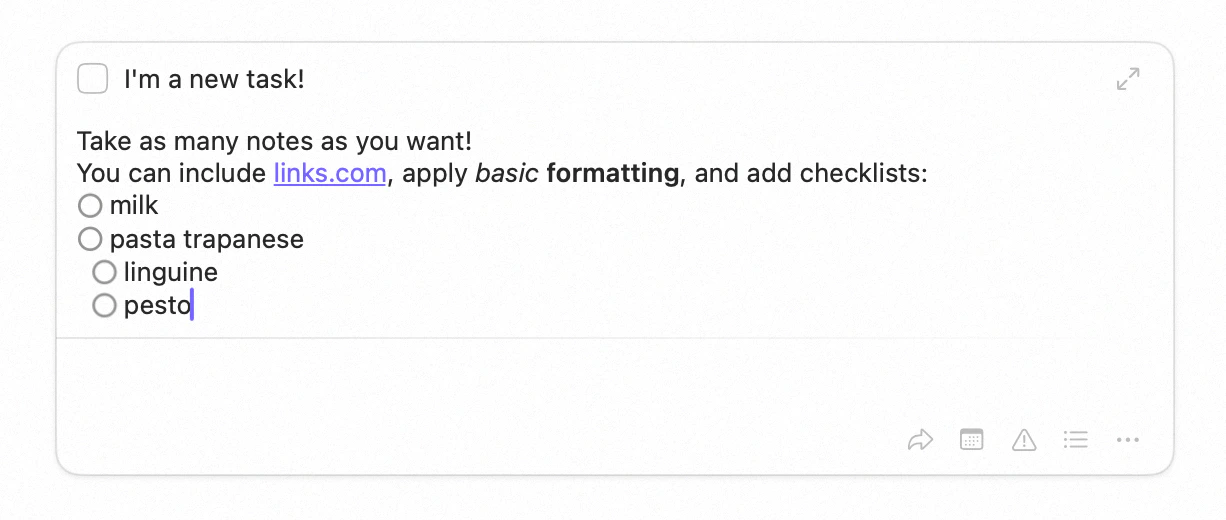
Adding a new task
Deal with a late task
A task left over from a past day shows a little sleep icon. Double-click it to open it, then either clear the late status — which schedules it for today — or reschedule it to another day. Nothing slips away quietly; you decide what happens to it. See Overdue tasks.Open a task to do more
Double-click a task (or tap it on iPhone) to open it. From here you can:- Mark it priority with the triangle — the checkbox turns red. You can also type
!!!in the name. - Schedule it using the calendar, or by typing the date straight into the name.
- Type it naturally — write the date, time, project, or tags into the name itself, like
tomorrow 3pm #Work @urgent, and Sonto files them for you. See Natural language input. - Add notes — type anything you like.
- Move it to the inbox (which unschedules it), or into an area or project.
- Mark it in progress from the menu (the icon becomes a play icon), or by long-clicking the icon. Handy for longer tasks.
- Focus it — a full-screen, distraction-free view, great for writing. See Focus.
The inbox is your holding pen
The inbox is for tasks that aren’t scheduled or filed yet. Empty it regularly — schedule each item, file it in a project or area, or delete it.Think in weeks, not just days
Switch to the Week screen and you’ll see your weekly tasks, the days of the week, and your calendar. In Sonto, a week is a real planning unit: you can schedule a task on a week — meaning you want it done sometime this week, but not on a specific day yet. As the week unfolds, you move each task onto the day you’ll actually do it. You can also drag a task straight onto a day, a week, an area, or a project. Drop it on a day or week and it’s scheduled for that day or this week.
The Week screen
Where to next
The big picture
The ideas behind the app, so the rest makes sense.
Organise your way
Structure your tasks with projects and areas.