

Setting up repeating tasks in Sonto
Open the repetition settings
Right-click a task and choose Edit Repetition, or open the task, go to its menu, and pick Edit Repetition. Same result either way.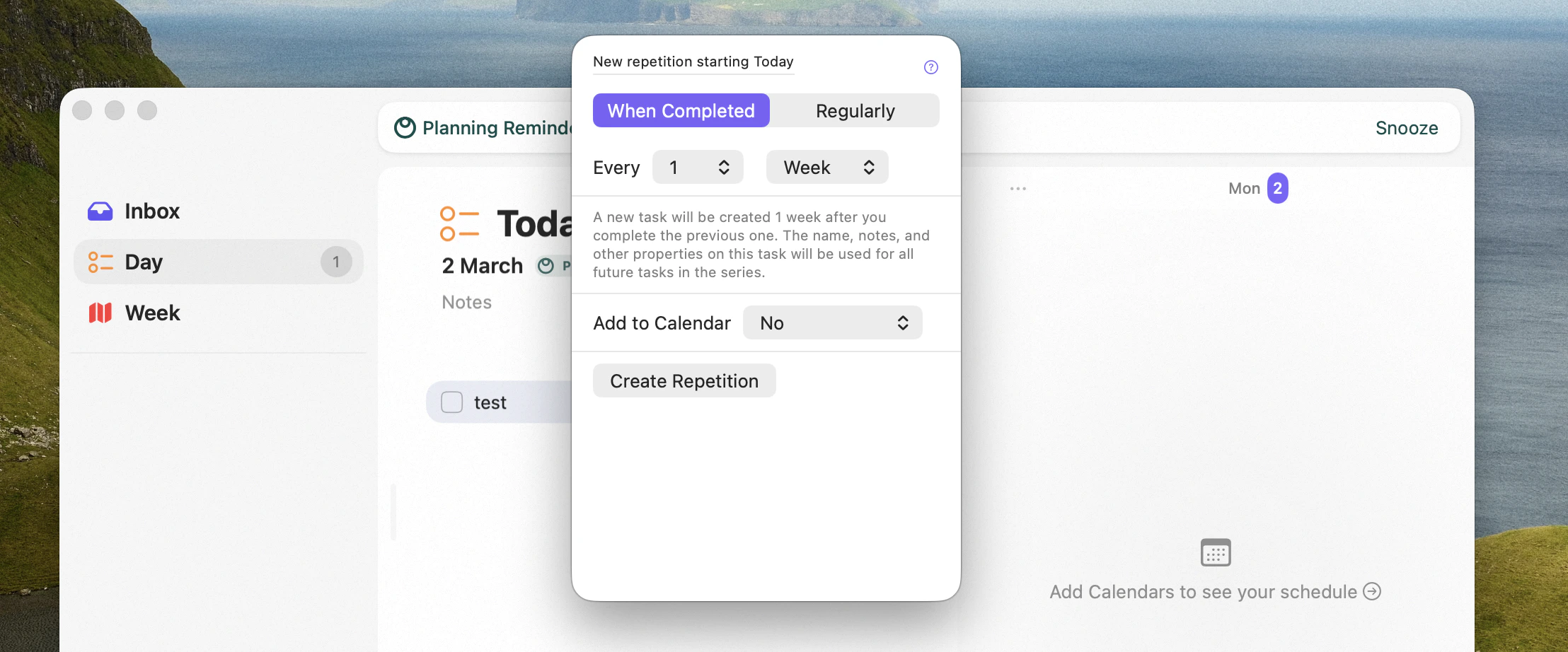
Editing a task's repetition
Choose how it repeats
There are two styles:- When completed — Sonto keeps just one instance of the task at a time. When you check it off, a new one appears after the offset you set. Think of it as a rolling window: “water the plants 5 days after I last did.”
- On a regular schedule — Sonto creates several instances into the future on a fixed cadence: daily, weekly, monthly, every two weeks, weekly on certain days, and more. Need something specific? Custom lets you build a daily, weekly, monthly, or yearly rule.
A task scheduled on a week can’t repeat more often than weekly. To repeat daily, schedule the task
on a day first, then set up the repetition.
Add each occurrence to your calendar
When you set up a repetition, you can also create a calendar event for each occurrence:- At an exact time — the event always lands at that time, even if something else is there.
- Find an opening — Sonto places it at the best time that fits, respecting your working hours and existing events. See Auto-schedule.
Review your repeating tasks
Future occurrences can be far off, so there’s one place to manage them all: open the Go to menu and choose Repeating tasks. From there you can review, edit, or delete any repetition, and jump straight to its next instances.On iPhone too
Everything here works on iPhone as well — open a task, choose Edit Repetition, and you’ll find the same options.Where to next
Repeating Tasks reference
The full detail on repetition.
Auto-schedule
How Sonto finds an opening for an event.