

Check out a video walkthrough of repeating tasks
See repeating tasks set up from start to finish.
Make a task repeat
Open a task and choose Edit Repetition — on Mac you can also right-click the task and pick it from the menu. From there you set how the task should recur.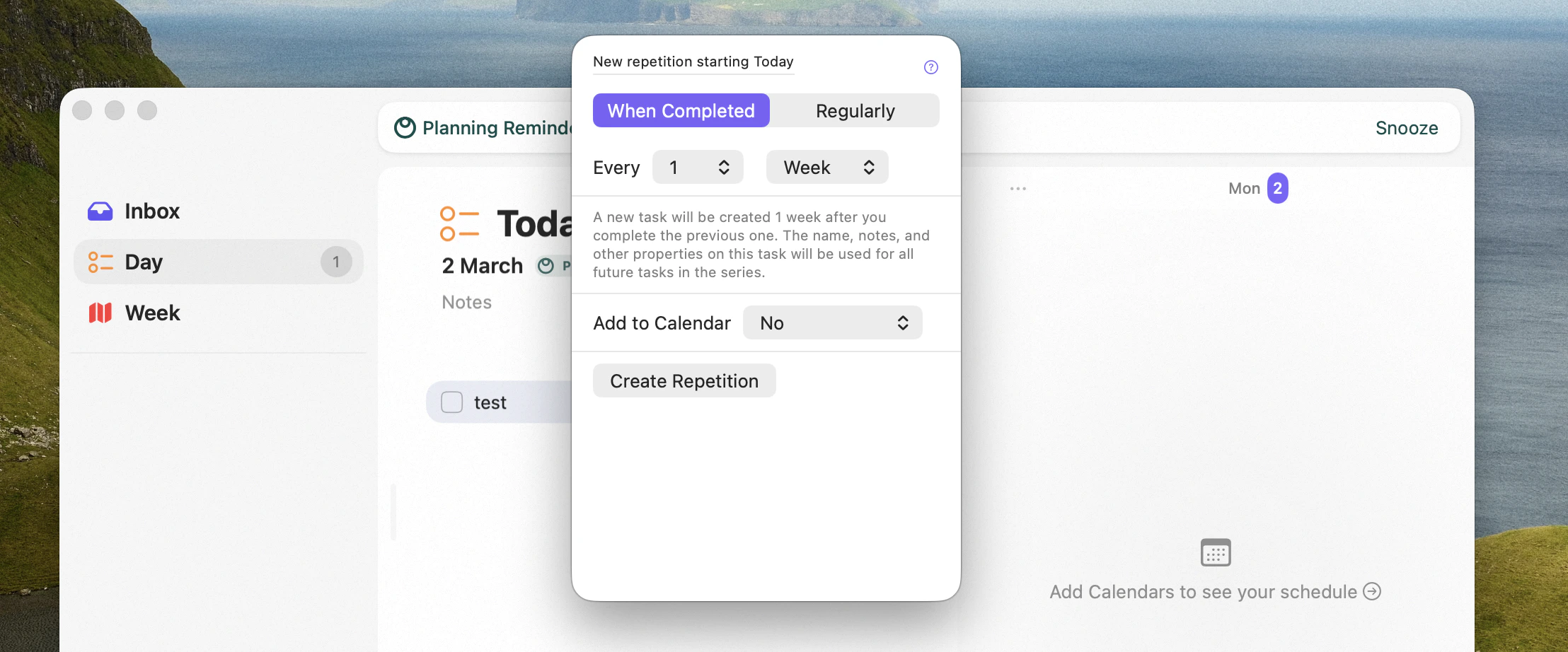
Editing a task's repetition
Two ways to repeat
- On a fixed schedule — the task reappears on set dates (for example, every Monday, or the first of the month), regardless of whether you finished the previous one.
- On completion — the next occurrence is created only once you complete the current one. This suits tasks where the interval matters from when you actually did it, like “water the plants every 5 days”.
Add repeating tasks to your calendar
A repeating task can also create a calendar event for each occurrence. You can have Sonto place the event at a fixed time, or let it find an opening in your schedule that respects your working hours and existing commitments — see Auto-schedule.Availability
Repeating tasks can be created and completed on Mac, iPhone and iPad. Finding an opening for a calendar event uses auto-scheduling.Related
Auto-schedule
Let Sonto find a free slot on your calendar.
Calendar
How events and time blocks work in Sonto.