

Check out a video walkthrough showing the basics of Sonto
Get introduced to the basic functionality of Sonto.
Adding tasks
Click or tap the purple+ button to add a task. On Mac you can also press Cmd + N.
The new task appears at the top of the list, ready for you to type.
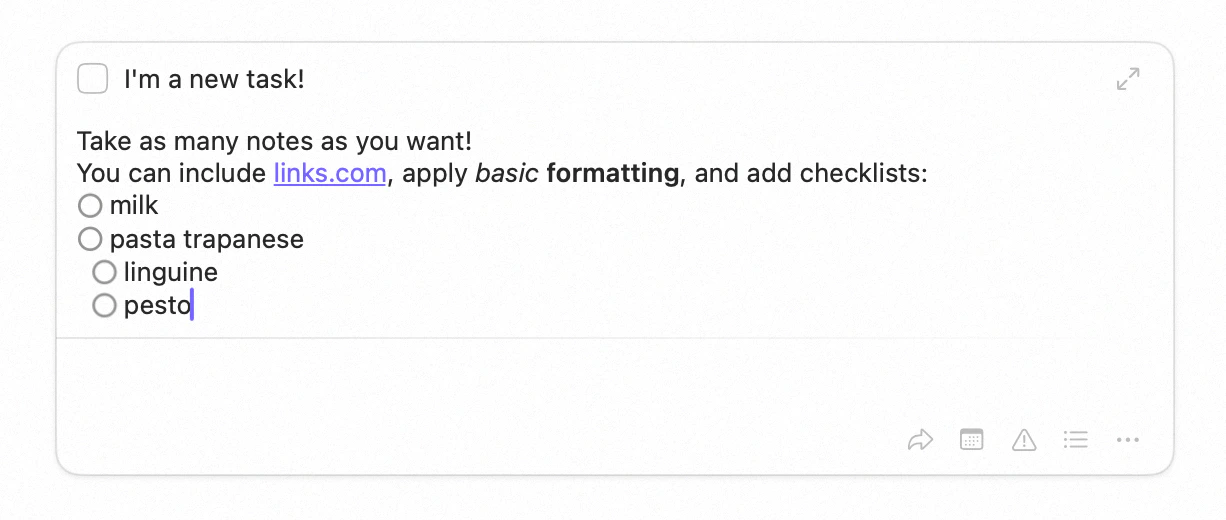
Adding a new task
Drop a task exactly where you want it
If the top of the list isn’t where the task belongs, don’t add it and then move it — place it as you create it. Press and hold the+, drag it into the list, and the list opens a gap to show you where
the task will land. Let go, and the task appears there with its name field already active.
You can drop into a group as well as the main list. On iPhone, either drag the + or hold it still
for a moment to pick it up. Dragging back onto the + cancels — it turns into a ✕.
This works on the inbox, day, week, project, area and tag screens. It isn’t available on search,
archive or repetitions, or on a day or week that has already passed.
Type tasks naturally
You can set a task up as you name it. Type a date, a time, a project or area, and tags right into the name, and Sonto files them for you —Prepare deck #Work @urgent tomorrow 3pm schedules the task for
tomorrow at 3 pm, files it in Work, and tags it urgent, leaving the name as Prepare deck. See
Natural language input for everything it understands.
Editing tasks
To begin editing a task, double-click it (or tap it on iPhone), or select it with the arrow keys and press Return. The buttons at the bottom-right let you take quick action — move it, schedule it, or reach many more actions through the … menu.
Moving a task
You can do almost everything to a task from the keyboard. See
Keyboard shortcuts.
Reordering tasks
Pick a task up and drag it where you want it. On Mac you can do the same from the keyboard: select a task and press Cmd + ↑ or Cmd + ↓ to move it one place at a time, or Cmd + Shift + ↑ / Cmd + Shift + ↓ to send it straight to the top or bottom. A multiple selection moves as one block, and a task can travel from one group into the next.While you’re editing a task’s name, Cmd + ↑ and
Cmd + ↓ belong to the text field instead. Press Return to
finish editing first.
Copying and pasting tasks
Tasks go on the clipboard like anything else — copy one in a project and paste it into next week, or duplicate a task you set up carefully rather than building it again.- Mac
- iPhone & iPad
Select one or more tasks and press Cmd + C to copy, Cmd +
X to cut, or Cmd + V to paste into the list you’re in.
-, * and 1. as it goes. A line starting [x] arrives already completed. Copying the other
way gives you a Markdown checklist, one - [ ] Task name per line.
Deleting tasks
- Mac
- iPhone & iPad
Select one or more tasks and press Backspace or Cmd + Backspace,
or choose Delete from a task’s
… menu.Undo and redo
Almost anything you do to your tasks can be undone: deleting, cutting and pasting, completing, scheduling, moving between lists, reordering, renaming, editing notes, tag changes, creating a project or an area — and the changes an AI assistant makes on your behalf.- Mac
- iPhone & iPad
Cmd + Z undoes and Cmd + Shift + Z redoes.
You’ll also find Undo and Redo at the top of the Edit menu.
A few less common actions clear the undo history, so Undo is occasionally unavailable. That’s
deliberate: Sonto would rather offer you nothing than undo the wrong thing.
Turning a task into a project
Some tasks grow. When one turns out to be a piece of work in its own right, select it and choose Convert to Project from its… menu. Sonto creates a project with the
task’s name and notes, and opens it.
The option appears only when you have exactly one task selected. A whole group can become a project
too, and that route keeps much more — see
Convert a group or task into a project.
What a task can hold
A single task can carry all of the following:- Priority — mark a task as priority so it stands out and surfaces on your day
(Cmd + T). You can also type
!!!in the name — see Natural language input. - Scheduling — assign a task to a day or a week, or place it on the calendar as a time block.
- Notes & checklist — context, links, formatting, and sub-tasks. See Notes & Checklists.
- Project or area — file a task in a project or area, or leave it in the inbox.
- Tags — label a task so it shows up across tag filters (Cmd + Shift + T).
- Deadline — a task inherits the deadline of its project, which Sonto surfaces as the date approaches.
Task states
A task moves through three states:- Open — not started.
- In progress — currently being worked on. Toggle with Cmd + R, or long-press the checkbox.
- Complete — done. Toggle by clicking the checkbox or pressing Cmd + E.
Repeating tasks
Any task can repeat — on a fixed schedule or when you complete it — and optionally add itself to your calendar. See Repeating tasks.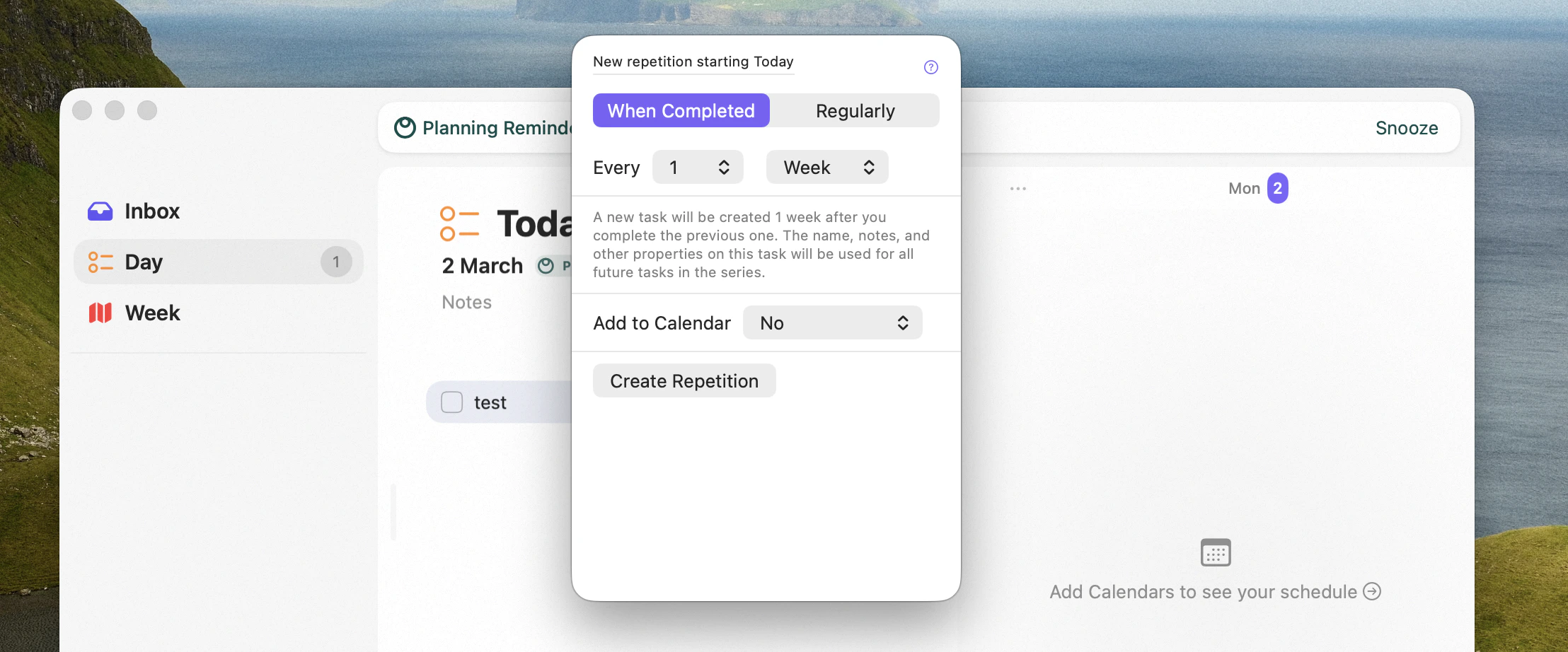
Editing task repetition
Focus
To work on a task distraction-free, open it in Focus — full screen, with everything else out of the way (Cmd + . on Mac).Availability
Tasks work on both Mac and iPhone & iPad. The keyboard shortcuts above are Mac-only.Related
Screens
Where tasks live: inbox, day, week, projects, areas.
Keyboard shortcuts
Every task action from the keyboard.