

Check out a video walkthrough showing projects and areas in Sonto
Get introduced to projects and areas in Sonto.
The difference between projects and areas
An area represents an ongoing part of your life, or a role you play. Like “work”, “family” or “marketing”. A project on the other hand, is finite. It has a clear outcome in mind and you’re working towards a day where you can mark the project complete and close it.Creating new projects and areas
You can create a new project or area from the File menu, or from + button at the bottom of the sidebar. When you hover over that +, a menu will pop up.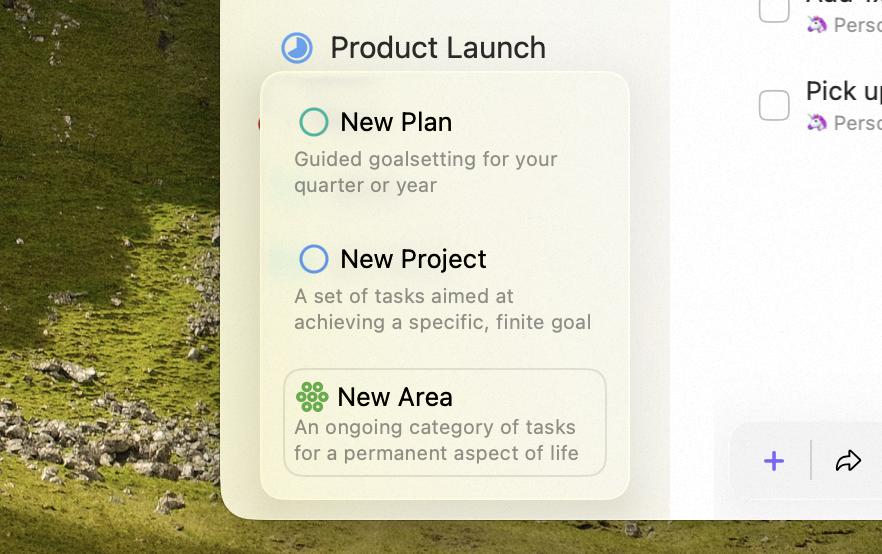
Creating from the sidebar
Organising tasks in projects and areas
At first glance, a project or area might look exactly like the inbox — but that is not the case. One superpower that projects and areas have is groups. Groups allow you to create structure. A group has a name, and you can drag tasks into it. (These are task groups — distinct from the planning groups you create in a quarterly plan.)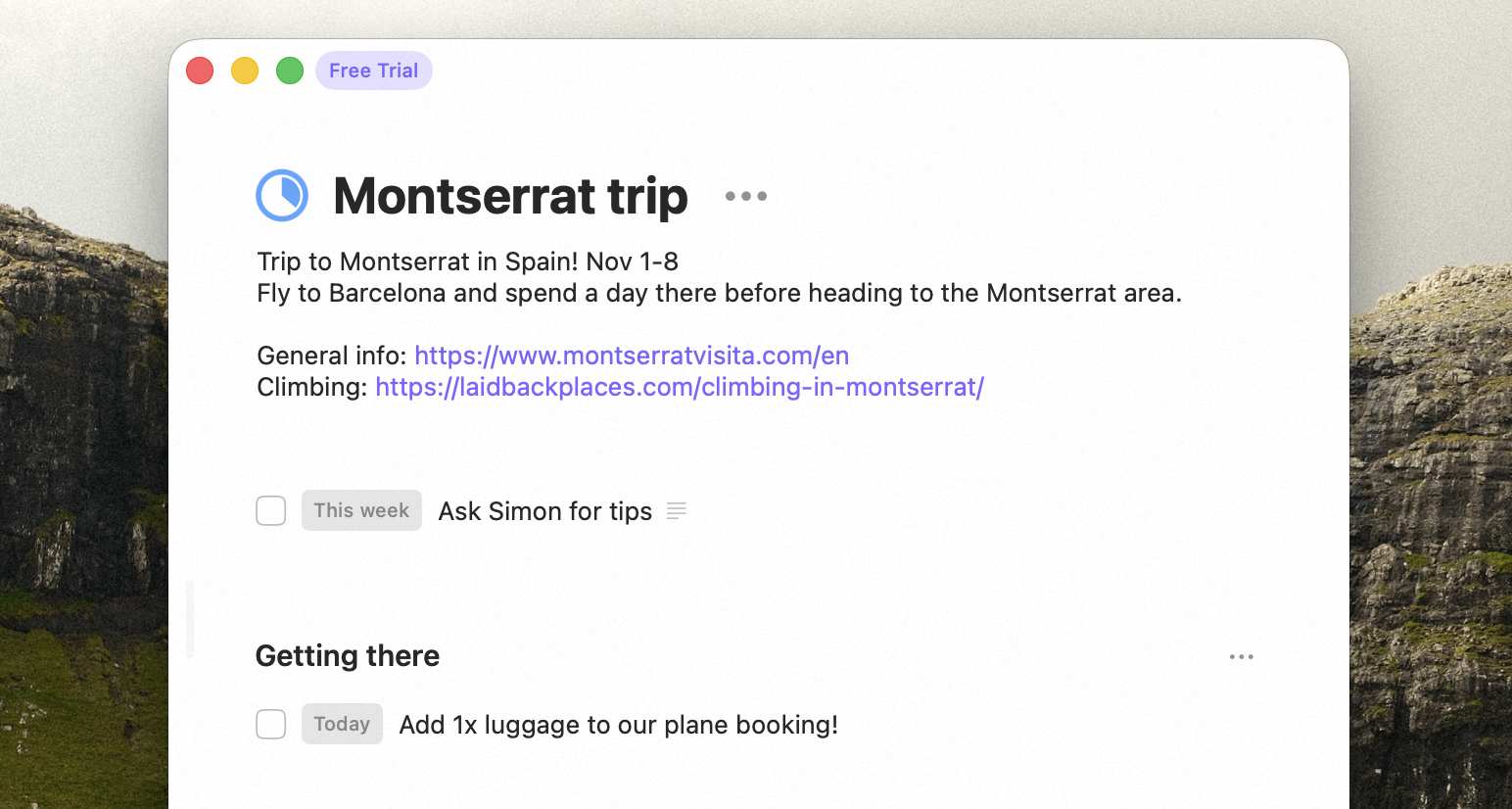
Groups in a project
Convert a group or task into a project
Work doesn’t always announce itself as a project. A group inside an area fills up until it clearly needs its own home; a single task turns out to be a fortnight’s work. Rather than rebuilding it by hand, convert it. From a group — right-click the group (on iPhone, tap its…) and choose Convert to Project.
The group’s name becomes the project’s name, every task inside it moves across in the same order, and
the new project joins the same area the group was in. Repeating tasks that were filing themselves into
that group carry on filing into the project. The empty group is then removed.
From a task — select a single task and choose Convert to Project from its … menu. This one
travels light: the project takes the task’s name and notes, and nothing else.
Project progress and completion
As you check tasks off, you’ll notice the progress pie fills up. This provides a visual indicator of the progress of your project.
The progress pie fills up as you check tasks off
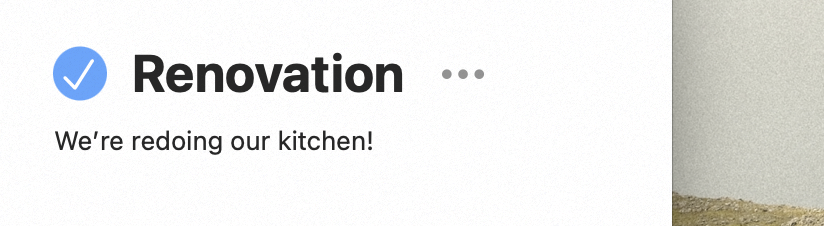
Click the progress pie to complete the project
Project deadlines
You can add a deadline to a project. When you do this and the deadline is near (less than 30 days away) it will show up in your sidebar to remind you. The week of the deadline, the project will also show up in your Week screen, and on the day of the deadline, on your Day screen.Area emoji
Areas can have an emoji, to give them some colour. You can set an emoji using the … menu or (on Mac) by clicking the icon. Double clicking the icon removes the emoji.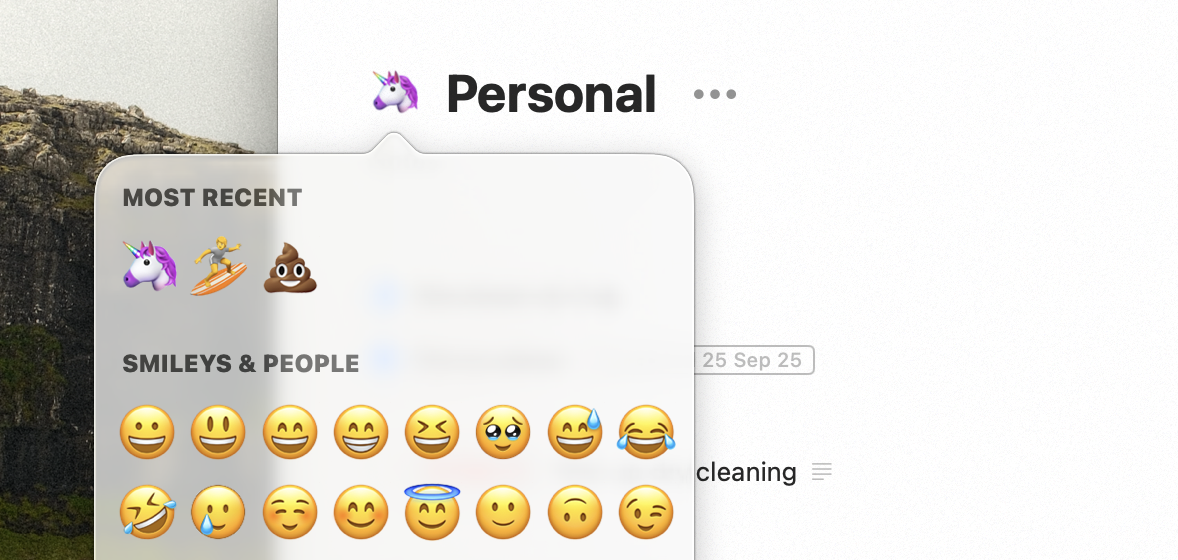
Click the area icon to select an emoji
Availability
Projects and areas are available on both Mac and iPhone.Related
Screens
Where projects and areas sit among your screens.
Tags
A cross-cutting alternative to projects and areas.