

Find time on a calendar
- Mac
- iPhone & iPad
Select a task and press Cmd + F, or right-click it and choose Find Time on
Calendar. It’s also in the Tasks menu and in the action bar’s
… menu.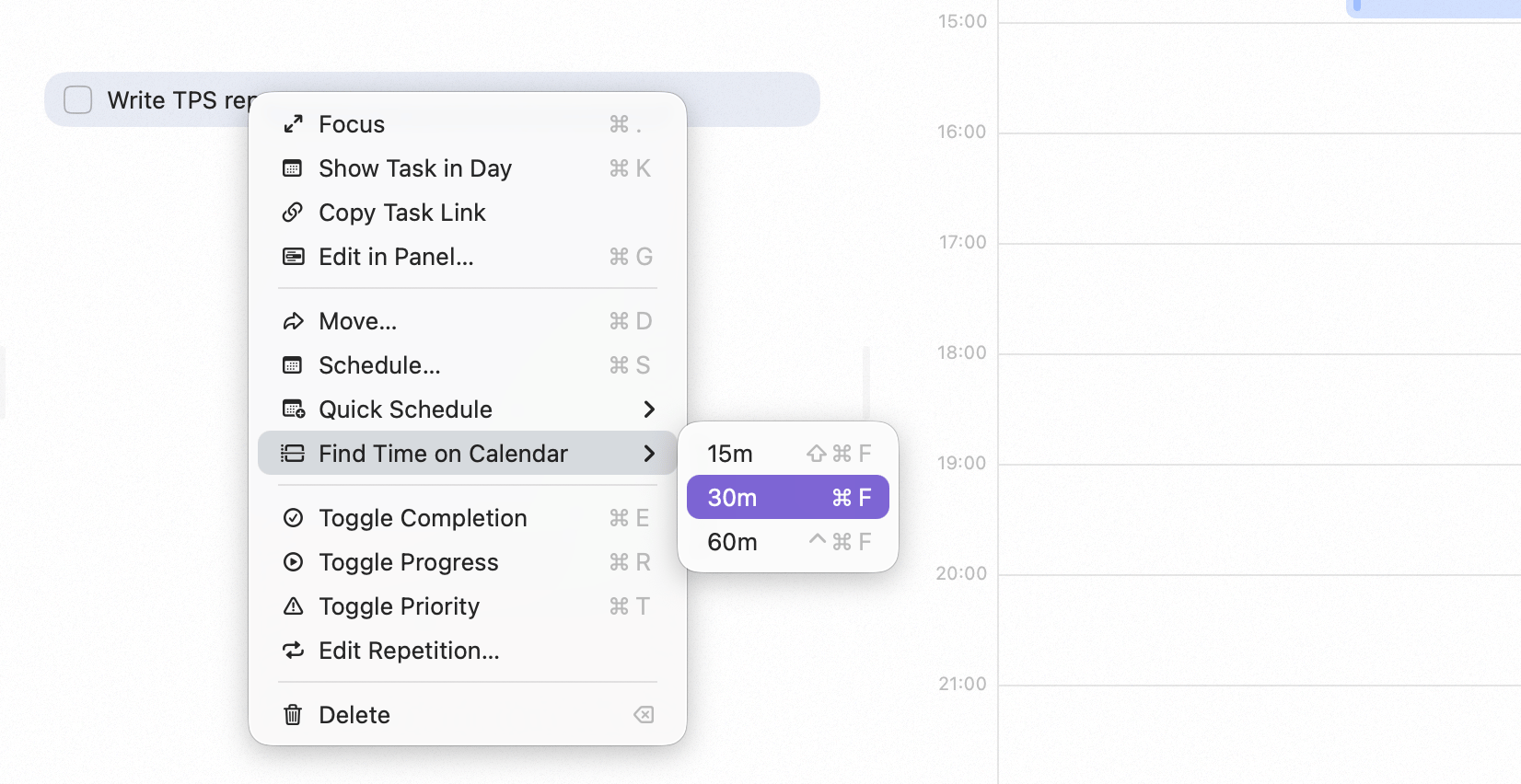
Finding an opening for a task
Which day
- A task scheduled for today — Sonto looks for an opening between now and the end of your working hours.
- A task scheduled for a later day — Sonto looks on that day.
- An unscheduled task, a task planned for a week, or an overdue task — Sonto schedules it for today first, then finds time.
How long
The block uses your default event duration — 30 minutes unless you change it. To book half or double that, pick the length from the Find Time on Calendar menu, or press Cmd + Shift + F for half and Cmd + Ctrl + F for double.When nothing fits
If no opening is long enough within your working hours, Sonto tells you — No Free Time Found — rather than booking outside them or on another day. A task it moved to today stays scheduled for today, just without a time block.Working hours
Auto-scheduling only places tasks within your working hours, so it never books your evenings unless you tell it to. Set your working hours and default event duration in Settings → Scheduling. See Settings.Used by repeating tasks
Repeating tasks can auto-schedule each occurrence, finding a fresh opening every time instead of using a fixed time.Availability
Auto-scheduling works on Mac, iPhone and iPad. The keyboard shortcuts need a Mac, or an iPad with a keyboard.Related
Calendar
Events and time blocks in Sonto.
Settings
Set your working hours.