

Importing is part of the Backup & Import window on Mac — open the Sonto menu, choose
Backup & Import…, then the Import tab.
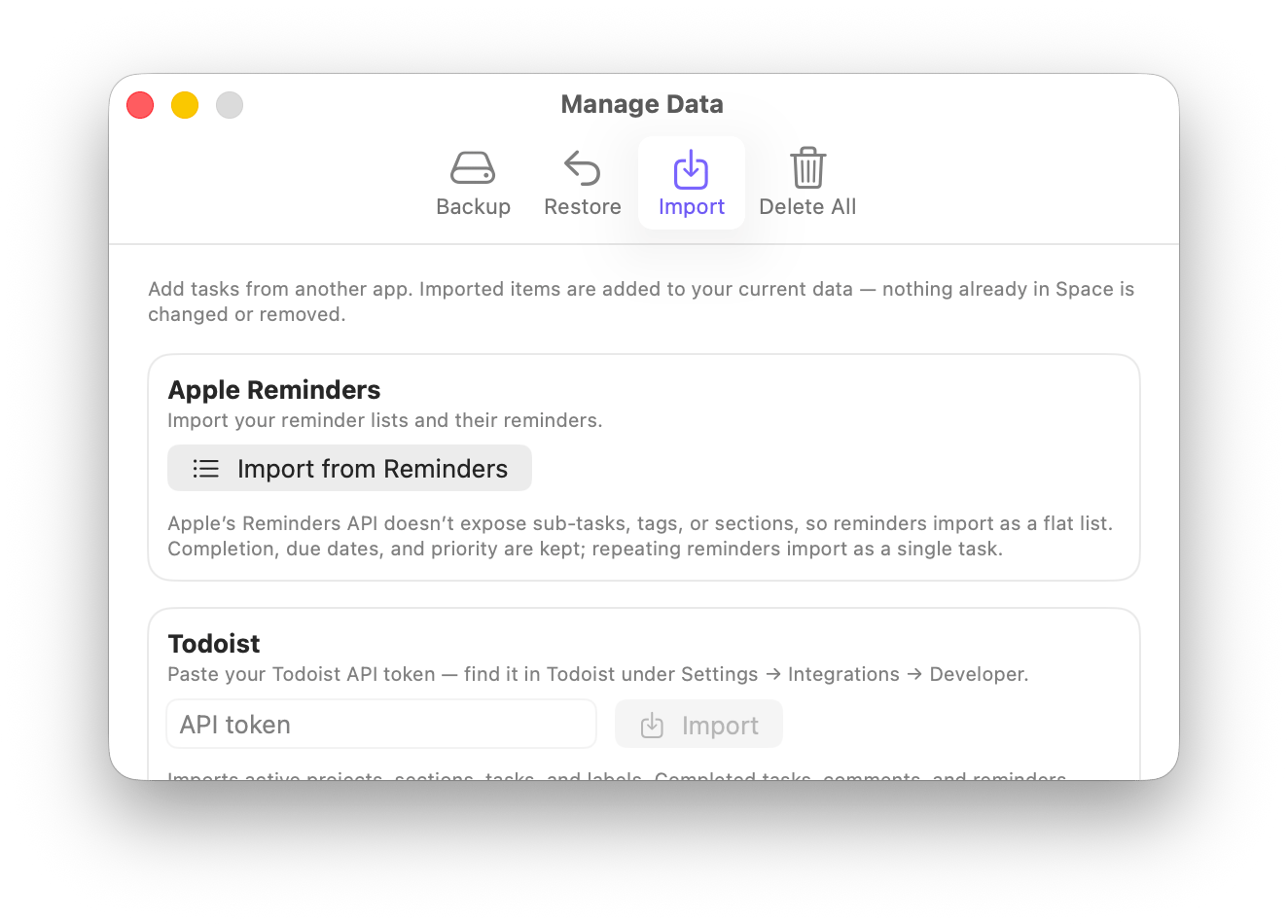
Import from Apple Reminders, Todoist, or Things
Apple Reminders
ClickImport from Reminders. The first time, macOS asks for permission to read your reminders — Sonto
only asks at the moment you import, never before.
Each reminder list becomes a project, and your reminders become tasks, keeping their completion, due
dates, and priority.
Apple’s Reminders system doesn’t let other apps read sub-tasks, tags, or sections, so reminders come
in as a flat list. Repeating reminders are imported as a single task.
Todoist
Todoist needs an API token so Sonto can read your data. In Todoist, go toSettings > Integrations >
Developer and copy your API token, then paste it into Sonto and click Import.
Your projects, sections (as headings), tasks, and labels (as tags) come across, along with due dates and
priority.
Imports your active tasks. Completed tasks, comments, and reminders aren’t included. Sub-tasks and
nested projects are flattened into their project, and repeating tasks come in as a single task with
the schedule noted.
Things
ClickChoose Things Database…. Because Things keeps your data inside its own private folder, you’ll
point Sonto at the Things database file so it can read it. Sonto starts the file picker near where
Things stores it.
Your areas, projects, headings, to-dos, and tags come across, and checklist items are kept as a
checklist inside the task’s notes.
Things has a Someday list for to-dos you’ll get to eventually. Sonto doesn’t have a separate
Someday list, so these come in tagged Someday — keeping their project or area, just without a
scheduled day — so you can still round them all up in one place.
Items in the Trash and repeating-task rules aren’t imported (repeating to-dos come in as their next
single task).
Availability
Related
Backup & Import
Backup, restore, and delete your Sonto data.
Move your data in and out
A recipe for importing, backing up, and exporting.